

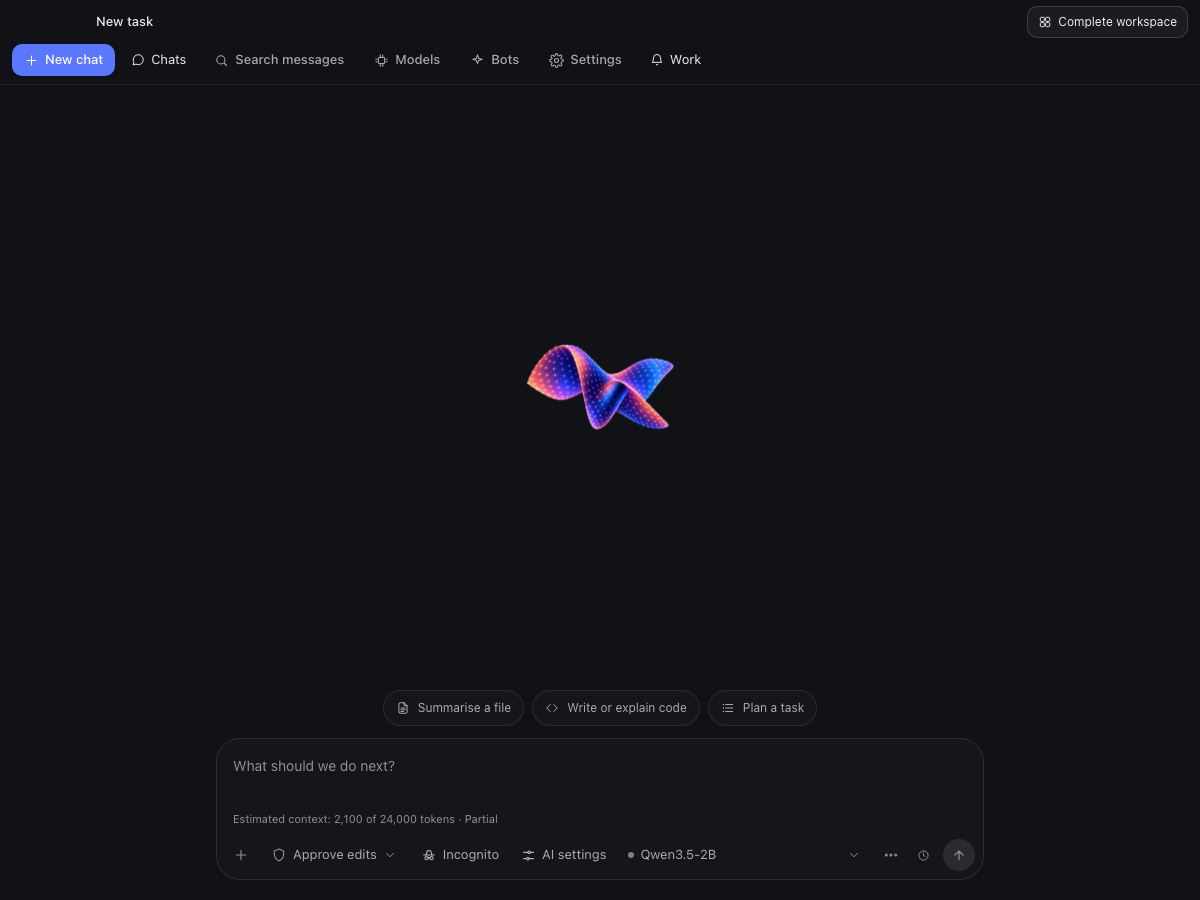
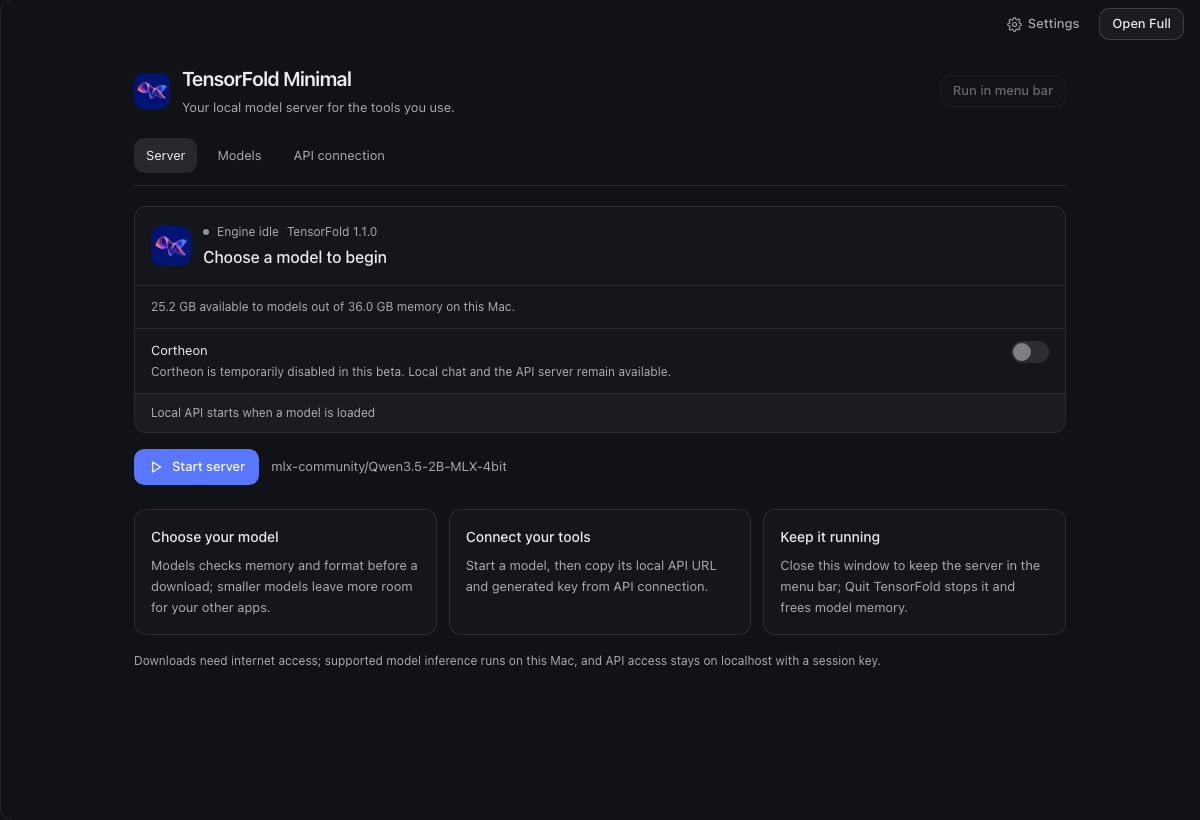
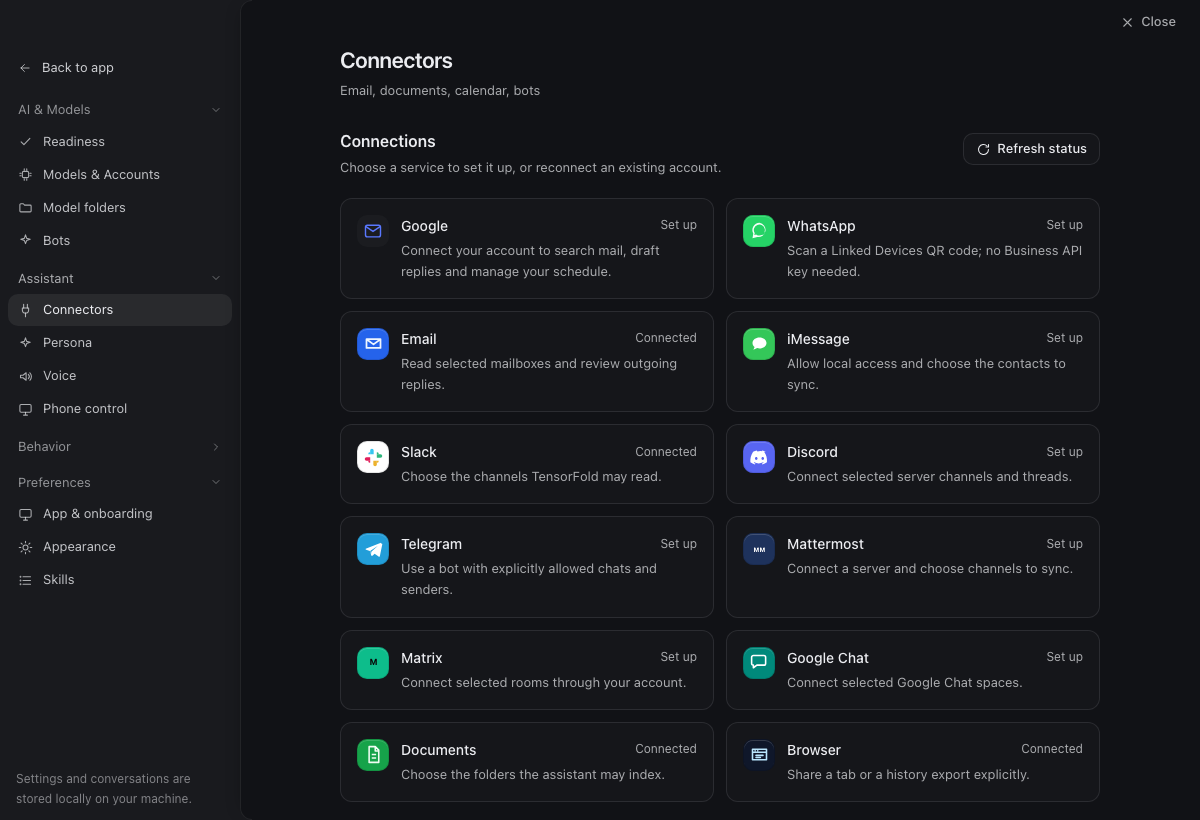
How-to guideApp beta 8 · Engine 1.1.0

THE TENSORFOLD HANDBOOK

Use TensorFold,
step by step.

Follow the annotated screenshots from your first model to connected tools.

Prefer the command line?

Install the engine, serve a model and connect your tools.

Browse all guides

58 topics

Start with the app

4 guides

Everyday workflows

6 guides

Models & performance

8 guides

Workspaces & agents

11 guides

Connectors

9 guides

Tools & devices

4 guides

Command line

6 guides

Advanced engine use

8 guides

Troubleshooting

2 guides

Screenshots show the beta 8 interface with example data; your models and connections will differ. These instructions are checked against app 1.0.0-beta.8 and engine 1.1.0, released 18 October 2026; newer releases may change labels and options.

Need a hand? Ask the TensorFold community or report an issue.

How-to guideStart with the app

Install the Mac app

Install TensorFold 1.0.0 beta 8 and choose how you want to use it.

Find it in the app

Click a screenshot to enlarge
Choose your starting modeApp beta 8 · example workspace
  1. 1

    Choose Minimal for the small local-server interface.

  2. 2

    Choose Full for chats, projects and connected tools.

  3. 3

    Continue with the mode you selected.

Open full-resolution image ↗

Follow the steps

  1. Choose Download for Mac and open the downloaded DMG file.

  2. Drag TensorFold into Applications, then open TensorFold from Applications.

  3. On the first screen, choose your language and select Minimal for a local model server or Full for the chat and work interface.

  4. Continue to Your model and choose the built-in TensorFold engine to run a model on this Mac; use a compatible model that passes the hardware checks.

  5. Complete Get started, review the suggested first task or choose a blank chat, then send your first message when you are ready.

More detail & options
  • The app requires an Apple silicon Mac running macOS 13.3 or later and bundles TensorFold engine 1.1.0.
  • The welcome flow has three stages: Your workspace, Your model and Get started.
  • Choosing a model does not automatically send a message or complete setup; download, load and send are deliberate actions.
  • You can return to setup through Settings → App & onboarding → Open welcome guide.

Your first conversation

The app includes its engine. You do not need the separate CLI installation to chat in the app.

  1. Open Find, download and load a model to choose a compatible checkpoint.

  2. Wait for its download to finish, load it, and check that its state is Running.

  3. In Full mode, choose Chat and ask a short question such as "Explain what you can help me with in two sentences."

Limits & privacy
  • The Mac app is separate from the command-line installation for Metal and CUDA.
  • Leave enough disk space for the app and your selected model; model memory checks determine whether a checkpoint can load.
How-to guideStart with the app

Switch between Minimal and Full

Pick Minimal for a small model server, or Full for chats and workspaces.

Find it in the app

Click a screenshot to enlarge
Switch modes and choose your Full layoutApp beta 8 · example workspace
  1. 1

    Open App & onboarding under Preferences.

  2. 2

    Choose Minimal or Full under How you use TensorFold.

  3. 3

    In Full, choose Chat layout or Complete workspace.

Open full-resolution image ↗

Choose the app mode

  1. Open app settings

    Open Settings, then choose App & onboarding under Preferences.

  2. Choose Minimal or Full

    Under How you use TensorFold, choose the mode you want. Your models and conversations stay available.

If you chose Minimal

Use these controls when you choose Minimal.

  1. Use the Minimal tabs

    Server controls the model, Models manages downloads, and API connection provides the connection details for another app.

  2. Hide the window or open Full

    Choose Run in menu bar to keep the server out of the way, or Open Full to return to chats and the rest of the app.

If you chose Full

These two layouts are available inside Full mode.

  1. Choose a Full layout

    Back in App & onboarding, find Full workspace layout. Choose Chat layout for conversations or Complete workspace for projects and developer views.

ChoiceWhat it gives you
MinimalA model server with Models and API connection controls; it can stay in the menu bar.
Full · Chat layoutA conversation-focused interface with Models, Bots, Settings and work activity nearby.
Full · Complete workspaceProject navigation and developer panes alongside your chats.
More detail & options
  • Minimal is a desktop mode, not the same setting as Chat layout.
  • Chat layout keeps Models, Bots, Settings and work activity nearby; Complete workspace restores saved sidebar and pane positions.
  • Closing the Minimal window leaves the server running in the menu bar; Quit TensorFold stops it and releases model memory.
  • Relaunching Minimal restores its controls without automatically loading a model.
Limits & privacy
  • Mode changes can be blocked while local work is active; finish or stop that work first.
  • The desktop mode cannot be changed through a paired remote browser session.
How-to guideStart with the app

Find your way around the app

A map of the released screens and where to find them.

Find it in the app

Click a screenshot to enlarge
Full: Complete workspaceApp beta 8 · empty example workspace, Incognito selected
  1. 1

    Start a task in a folder or open a new chat.

  2. 2

    More opens Assistant, Rooms, Automations, Plugins and Command Centre.

  3. 3

    Models manages downloads and the local engine.

  4. 4

    Open Settings to configure the app.

Open full-resolution image ↗

Follow the steps

  1. For the full navigation, open Settings → App & onboarding, choose Full, then Complete workspace.

  2. Use New chat for a conversation, New task for work in a chosen folder, and Search for saved messages.

  3. Open Models for the model library, or Bots for saved model-and-instruction presets.

  4. Expand More in the sidebar for Assistant, Rooms, Automations, Plugins and Command Centre.

  5. Open a project to see Overview, Rooms, Kanban, Solo, Files, Terminal and Settings.

  6. Open Settings for AI & Models, Assistant, Behavior and Preferences groups.

SectionUse it for
New chat / New taskA conversation, or work in a selected folder.
ModelsMy models, Discover, Workers, Learning and API, plus downloads and compute controls.
BotsSaved instructions, model choices and permission presets.
AssistantConnected-source threads, attention items, drafts and reviewed replies.
Projects / RoomsShared project context, multi-agent rooms, Kanban, files and terminal.
AutomationsManual, interval or daily tasks and activity digests.
PluginsBuilt-in tools, installed registrations, connections and MCP setup.
Command CentreApprovals, running work, missions and readiness.
SettingsModels & Accounts, Connectors, Security, appearance, language and mode.
More detail & options
  • Models contains My models, Discover, Workers, Learning and API; the header also opens Compute and clusters, Model folders and Downloads.
  • Assistant shows connected-source threads, drafts, replies and attention items.
  • Rooms opens Projects, where each project can hold several agent rooms.
  • Automations schedules work; Command Centre brings approvals, running work, missions and readiness into one dashboard.
  • Plugins separates Built-in tools, Installed registrations, Connections and Advanced MCP configuration.
  • AI & Models settings contains Readiness, Models & Accounts, Model folders and Bots.
  • Assistant settings contains Connectors, Persona, Voice and Phone control.
  • Behavior settings contains Runtime, Security and Orchestrator; Preferences contains App & onboarding, Appearance and Skills.
  • Chat layout keeps New chat, Chats, Search, Models and Bots nearby, with work activity available from its activity menu.
  • Minimal deliberately shows only Server, Models and API connection, plus Settings and Open Full.
How-to guideStart with the app

Update the app and reconnect clients

Download a verified update and restart when current work is finished.

What to do

  1. Open Settings → Runtime and find the app update controls.

  2. Choose Check for updates and review the displayed version and release notes.

  3. When an update is available, choose Download update and wait for downloading and verification to finish.

  4. Finish or stop active work, then choose Install and restart when offered.

  5. If automatic installation is unavailable, choose Download, verify and open or Open verified installer, then replace TensorFold in Applications.

  6. After the app reopens, reload your model if needed and copy fresh API connection details for other clients.

More detail & options
  • Auto-check for app updates can notify you of new versions without installing them immediately.
  • Updates are checked against TensorFold's signed release feed.
  • Cancel download stops an update download; the app shows any verification or installation problem instead of declaring success.
Limits & privacy
  • Restart disconnects local API clients, and the new engine session can use a different port and API key.
  • App and standalone CLI versions are separate; this guide covers app 1.0.0 beta 8 with bundled engine 1.1.0.
How-to guideEveryday workflows

Chat, attach files and revise a message

Start a conversation, keep drafts and control what the next request includes.

Find it in the app

Click a screenshot to enlarge
Full: Chat layoutApp beta 8 · empty example workspace, Incognito selected
  1. 1

    Open Models to download or manage a model.

  2. 2

    Settings contains modes, accounts and connectors.

  3. 3

    Switch to project navigation and developer panes.

  4. 4

    Choose a model and enter the task or message here.

Open full-resolution image ↗

Follow the steps

  1. In Full, choose New chat and select a ready model in the composer.

  2. Type your request, then send it; Shift + Enter adds a new line, and Settings → App & onboarding lets you change the send key.

  3. To include a file, open the attachment menu and choose Attach document or image; complete any extraction review or resolve any file warning before sending.

  4. To reuse a previous input, open the clock icon labelled Recent prompts and choose Insert; review the appended draft before sending.

  5. To correct a sent message, stop any active run, choose Edit below your message, review the effect, then choose Save changes or Save as edited branch.

  6. Use Stop while a response or task is running when you want it to finish early.

More detail & options
  • Conversation drafts retain your text and attachments; failed requests leave the draft available for retry.
  • Editing a sent message sends no new request and preserves displaced messages under Earlier revisions; it does not undo file changes or other external actions.
  • Recent prompts recalls direct text inputs from the same workspace and model account; it does not recall files or quoted context.
  • On the home composer, More options → Incognito makes the next conversation temporary; its history disappears when TensorFold relaunches.
  • While a run is active, text follow-ups can be queued for that session; attachments and quotes stay in the draft until the run finishes.
Limits & privacy
  • Image and file capabilities depend on the chosen model; resolve unsupported or unreadable attachments instead of assuming they were sent.
  • Incognito prevents TensorFold from saving that conversation, but providers and tools may retain their own records.
  • Private, connector, phone, bot and remote chats are excluded from Recent prompts.
  • When a message edit creates a branch, the branch still shares the current workspace files.
How-to guideEveryday workflows

Find a conversation and export it

Search saved messages on your Mac, then save a reviewed text copy.

What to do

  1. Choose Search in the chat navigation or press Command + Shift + F to search all saved conversations; Command + F searches the active conversation.

  2. Enter a phrase, question or decision and select All saved conversations or Current conversation.

  3. Use the project, archive and other filters to narrow the results, then open the matching message.

  4. In the conversation, choose Export readable text.

  5. Choose Markdown, Plain text or Self-contained HTML, and select the active conversation or specific messages.

  6. Choose Preview export, inspect the text and omissions, then choose Save reviewed export and pick a local file destination.

More detail & options
  • Full-text search stays on the Mac and does not ask a model.
  • Readable exports contain the active conversation branch; open another branch before exporting it.
  • HTML exports contain no scripts, embedded files or remote resources.
  • The export preview applies known secret and personal-detail patterns and shows omissions for review.
Limits & privacy
  • Global search excludes private, phone, Google and bot histories; search within their active conversation instead.
  • Pattern redaction is not a privacy guarantee; inspect the preview before sharing it.
  • A readable conversation export is not a restorable workspace backup or a diagnostics bundle.
  • Full-text search and readable exports are unavailable in paired remote browser sessions.
How-to guideEveryday workflows

Change language, text size and voice

Adjust the reading interface and choose local voice playback.

What to do

  1. Open Settings → App & onboarding and find Language and reading comfort.

  2. Choose Language, reading direction, chat text size, code text size and spacing, then check the preview.

  3. Enable Use this language for new assistant replies if you want future replies to follow the interface language, then choose Save.

  4. For speech playback, open Settings → Voice and turn on Speech bridge and Text-to-speech.

  5. Choose Kokoro · offline voices, then Download Kokoro; after it finishes, choose a voice and Preview voice.

  6. For dictation, enable Speech-to-text with System dictation, when available, then choose Voice input in the composer's More options menu.

More detail & options
  • Language packs are bundled for offline use; existing messages, code and original diagnostics do not change.
  • The model must support the requested reply language, and you can ask for another language in an individual message.
  • Kokoro downloads a verified speech model once, then performs English speech playback locally without an API key or a separate Python service.
  • Voice settings also control playback speed, volume and optional brief readback for long replies.
  • The send-key setting is here too; Shift + Enter always inserts a new line.
Limits & privacy
  • Dictation availability depends on system support and permissions.
  • The bundled Kokoro voices in this beta are English; changing the interface language does not make every voice multilingual.
  • Cloud voice playback is disabled in this beta.
How-to guideEveryday workflows

Back up and restore your workspace

Save selected local records in an encrypted file you control.

What to do

  1. Open Settings → Security and find Encrypted workspace backup; save or discard any pending settings edits first.

  2. Choose Create backup, then select conversations, projects, bots and the optional preferences, unfinished messages and managed attachments.

  3. Choose Preview selected backup and review its counts, contents and warnings.

  4. Enter a backup password of at least eight characters, then choose Save encrypted backup and a local destination.

  5. To restore, choose Restore backup, select Keep existing records or Replace matching records from the backup, enter the password and choose Choose backup and preview.

  6. Review the conflicts and warnings, confirm the reviewed choices, then choose Restore reviewed items.

More detail & options
  • Bots are restored paused, so restoring a backup does not start them automatically.
  • Keep the password separately; TensorFold cannot recover it.
  • Replace matching records applies to identities present in the backup, rather than silently selecting a different restore policy.
  • This backup is different from a readable chat export or a support diagnostics bundle.
Limits & privacy
  • Credentials, incognito chats, source folders, downloaded models and virtual machine disks are excluded.
  • Back up source repositories and model or VM files separately if you need those too.
  • Review included managed attachments before sharing a backup, even though the file is encrypted.
How-to guideEveryday workflows

Control saved memory and local history

Separate conversation storage, memory recall and experimental learning.

What to do

  1. In a chat or new-task composer, open More options → Memory.

  2. Choose Use saved memory to allow recall, and Propose new memories to allow suggestions for your review.

  3. Choose Save choices or Use for new chat; the selection applies to the next turn.

  4. For a temporary new conversation, enable Incognito on the home composer before starting it.

  5. Use an encrypted workspace backup when you want a recoverable copy of saved records.

  6. Only when you intend to erase local records, open Settings → Runtime → Power & local controls → Purge memory and read the confirmation in full.

More detail & options
  • Turning both memory controls off does not stop normal chat-history storage.
  • Memory proposals do not automatically approve memories or train model weights.
  • Incognito does not contribute memories and retains history only while the app is open.
  • Purge memory removes local records, isolated bot VM disks and private Living Weights copies and learning history.
  • Purge preserves original downloaded models, app settings and configured provider credentials; linked WhatsApp device credentials are removed, and managed Git worktrees are preserved and reported.
Limits & privacy
  • Memory changes do not erase earlier conversation context or undo learned weights; start a new chat for fresh context.
  • Providers and tools can retain their own records even when TensorFold uses Incognito.
  • Purge is destructive and owner-only; it is not a normal troubleshooting step.
  • The app does not claim every local file is encrypted; the encrypted backup is a specific protected export format.
How-to guideEveryday workflows

Jump through a long conversation

Browse questions, answers, recorded outcomes and pinned decisions without generating a summary.

What to do

  1. Open a conversation and choose Outline above the chat, or press Command + Shift + O.

  2. Filter by words or choose an entry type such as Your message, Answer, Recorded outcome or Pinned decision.

  3. Choose an entry to jump to its original location in the active conversation.

  4. Use Previous entries and Next entries when the outline spans several pages.

  5. If the outline reaches its scan limit, use Find in chat to search the remaining conversation.

More detail & options
  • The outline derives entries from recorded conversation messages, file changes and failed work.
  • Pin a message when you want it listed as a decision.
  • Building the outline does not send a summary request to a model.
How-to guideModels & performance

Find, download and load a model

Use the model library to choose a checkpoint that the engine can run on your Mac.

Find it in the app

Click a screenshot to enlarge
Find your models and downloadsApp beta 8 · example workspace
  1. 1

    Discover compatible models to download.

  2. 2

    Add a model folder you already have.

  3. 3

    Follow current downloads here.

  4. 4

    Start a compatible cached model in Minimal.

Open full-resolution image ↗

Follow the steps

  1. Open Models, then choose Discover.

  2. Use a supported starting point or enter a model name or owner/model in Search Hugging Face.

  3. Review the compatibility result, memory estimate and download-space check before downloading.

  4. Open Downloads to follow the queue, cancel a download or retry one that failed; completed models appear in My models.

  5. Choose Use model in Full, or Start server in Minimal, and wait for the Running state; in Full, choose Chat to open a conversation with it.

More detail & options
  • Star a model to add it to Favourites, then use the Favourites filter in My models.
  • Downloads use the shared Hugging Face cache and can resume after interruption.
  • The model title opens its details, including disk size, estimated memory, model context capacity and current running context.
  • Finish active local work before replacing or unloading its model.
Limits & privacy
  • Finding a Hugging Face repository does not mean its architecture or weight format is supported.
  • The built-in downloader does not accept a Hugging Face token; download gated models separately and add them through Model folders.
  • Memory estimates guide admission; the engine can still refuse a load that cannot fit.
How-to guideModels & performance

Use a model you already downloaded

Scan the Hugging Face cache or add a folder without copying its checkpoints.

Find it in the app

Click a screenshot to enlarge
Find your models and downloadsApp beta 8 · example workspace
  1. 1

    Discover compatible models to download.

  2. 2

    Add a model folder you already have.

  3. 3

    Follow current downloads here.

  4. 4

    Start a compatible cached model in Minimal.

Open full-resolution image ↗

Follow the steps

  1. Open Models → Model folders, or Settings → Model folders.

  2. Turn on Scan the Hugging Face cache, or choose Add folder and select the model folder in the file picker.

  3. Choose Scan now and wait for the compatibility check; choose a smaller folder if the scan reaches its limit.

  4. Read any reason shown beside the checkpoint, then choose Load when it is available.

  5. To stop checking a folder later, choose Remove folder.

More detail & options
  • External drives are supported, and compatible models load from their existing location.
  • Scans are optional, local and cancellable.
  • Remove folder only removes that search location; it does not delete model files or stop an already loaded model.
Limits & privacy
  • TensorFold checks architecture, quantization, required files and available memory before enabling Load.
  • If you move a model folder or disconnect its drive, select its new location before loading again.
  • Checkpoints borrowed from another cache remain read-only in TensorFold.
How-to guideModels & performance

Set context, reply length and temperature

Save named profiles for each local model and apply them to chats and API defaults.

What to do

  1. Open Models → My models and click the model name to open its details.

  2. Choose Settings, then select a profile or choose Add small context, Add large context or Create profile.

  3. Set Context window for the prompt and reply together, then set Maximum reply below that window.

  4. Adjust Temperature; open Advanced sampling and acceleration for Top P, Top K, Min P and Speculative drafting.

  5. Choose Save & apply and wait for the confirmation; if the model was loaded, reconnect API clients using its fresh connection details.

More detail & options
  • Lower temperature makes outputs more predictable; higher values introduce more variation.
  • A larger context can use more memory, and the running context can be smaller than the model's advertised capacity.
  • Small context starts at 8,192 tokens and Large context at 32,768, bounded by the model's capacity.
  • Select Engine defaults and Save & apply to return to defaults while keeping named profiles.
  • Profile changes remain drafts until saved; Cancel changes discards unsaved edits.
Limits & privacy
  • Applying settings to a loaded model restarts its server when idle and disconnects API clients.
  • Saving is blocked during active local work.
  • Greedy-only models keep temperature at zero and do not expose sampling controls.
  • Speculative drafting offers Automatic, when supported or Off; the app does not expose custom MTP depth or confidence.
How-to guideModels & performance

Use the app's model in another tool

The loaded model also serves an authenticated OpenAI-compatible API on your Mac.

What to do

  1. Load a model and wait until the engine is ready.

  2. Open Models → API in Full, or API connection in Minimal.

  3. Choose Copy URL and paste it into your client's OpenAI-compatible base URL field.

  4. Choose Copy API key and paste it into that client's API key field; use the Model ID shown in the panel.

  5. For a terminal check, choose Copy authenticated request and run the copied streaming curl command.

  6. After an engine restart or model reload, copy the connection details again.

More detail & options
  • The endpoint stays on loopback, so this connection is for tools running on the same Mac.
  • The server port and generated key change when the engine restarts.
  • Credentials are copied only when you explicitly request them.

App API or standalone CLI?

The app uses a new local port and API key for each engine session. The standalone CLI normally uses http://127.0.0.1:8080 until you choose another host or port. Always copy the app connection values when connecting to the app.

Limits & privacy
  • API sharing pauses while Living Weights is enabled; turn learning off to share the ordinary chat API again.
  • Do not assume the app uses the standalone CLI's fixed default port.
  • The copied request contains a live API key; treat it as a credential.
How-to guideModels & performance

Compare replies and measure model speed

Use a quick two-model comparison or run the app's repeatable benchmark.

What to do

  1. For a comparison, install two models confirmed to fit this Mac and finish active local work.

  2. Open Models → My models → Compare models, select model A and model B, enter one prompt, then choose Compare models.

  3. Read both answers and their timings; the app restores the previously loaded model when the comparison finishes.

  4. For repeatable measurements, open Models → My models → Benchmarks and choose a compatible cached model.

  5. Optionally enable Serial baseline, then choose Run benchmark; reopen this panel to follow or cancel the job.

  6. When it finishes, choose Copy basic results or Review and export JSON; review the exported report before sharing it.

More detail & options
  • Comparison runs models sequentially with a 256-token reply limit and temperature zero; saved context profiles may differ.
  • Comparison excludes chat history, files, tools and learning, and does not save its answers to chats.
  • The community-v1 benchmark uses code and chat fixtures, a 4,096-token context, 256 output tokens and 24 requests: four warm-ups and 20 measured samples at temperatures zero and one.
  • Benchmarks temporarily reserve the app-managed engine, pause its server and restore the previous model and profile.
  • Closing the benchmark drawer does not cancel a running job; choose Cancel benchmark to stop it.
Limits & privacy
  • Comparisons require Living Weights to be off.
  • Benchmarks do not download models automatically and do not accept linked-folder or unverified-memory targets.
  • App benchmark exports are local files; nothing is published to the community page automatically.
  • A short comparison measures a sample, not an overall model quality ranking.
How-to guideModels & performance

Connect another local model server

Use a model you already serve on this Mac or a machine on your network.

What to do

  1. Start your model server first and note its API address, port and any API token.

  2. Open Settings, expand AI & Models, and select Models & Accounts.

  3. Find Add provider or node and select Local node.

  4. Choose This Mac or Network under Where is it running, then choose your Runtime.

  5. For a custom OpenAI-compatible server, choose vLLM / llama.cpp and enter the server port and API path, usually /v1; the name covers custom compatible endpoints too.

  6. For Network, enter Host / IP; for This Mac the host is fixed to 127.0.0.1, then enter an API token if your server requires one.

  7. Check the Endpoint preview, select Test response, then select Add and connect.

  8. Return to a chat and select that provider and its model in the model picker.

More detail & options
  • Presets include oMLX, LM Studio, Ollama and a custom vLLM / llama.cpp endpoint.
  • The preset ports are 9000 for oMLX, 1234 for LM Studio, 11434 for Ollama and 8000 for the custom preset; use the actual port from your server.
  • Discover this Mac is available for the named local runtimes; network nodes use the values you enter.
  • Test response sends a fixed test prompt without conversation history or files.
  • Models served by the app itself have a generated session key and port; copy their current connection details instead of guessing a fixed URL or key.
Limits & privacy
  • Adding a provider does not install that server or download its models.
  • A model list alone does not prove generation works; use Test response.
How-to guideModels & performance

Connect a cloud model account

Add an API provider while keeping the provider and model choice visible in each chat.

What to do

  1. Obtain an API key from your chosen provider using that provider's own documentation.

  2. Open Settings → AI & Models → Models & Accounts.

  3. In Add provider or node, choose Cloud and HTTP endpoint.

  4. Choose Cloud provider, optionally give the account a Display name, and paste its API key into the password field.

  5. Select Test response, read the result, then select Add and connect.

  6. Return to your chat and choose the added provider and model.

More detail & options
  • The provider dropdown includes OpenAI, OpenRouter, Vercel AI Gateway, Anthropic, Groq, Together, z.ai GLM, DeepSeek and xAI Grok.
  • Configured providers holds endpoint and account settings after setup.
  • Models & Accounts also lets you choose Assistant model and Coding tasks model separately.
  • Test response uses a fixed test prompt; cloud provider usage charges may apply.
Limits & privacy
  • An API key and a chat subscription are different forms of access; use the appropriate setup route.
  • A cloud provider sends its model requests to that provider.
  • Available models and billing are controlled by the provider; the app preset is not a guarantee that every listed model is available to your account.
How-to guideModels & performance

Use your Codex or Claude CLI login

Connect an installed and authenticated agent CLI through Models & Accounts.

What to do

  1. Install the selected provider CLI using its official instructions if it is not already installed.

  2. Open Settings → AI & Models → Models & Accounts and choose Cloud.

  3. Under Provider type, choose Codex CLI or Claude CLI.

  4. Choose Single under How many subscriptions and let TensorFold check the installed CLI.

  5. If the CLI is detected and signed in, select Connect; if installed but signed out, select Add & sign in and complete the browser sign-in.

  6. If TensorFold cannot find the CLI, install it or set its CLI binary in Advanced, then select Re-check.

  7. Select the connected provider in a chat, room, bot or automation.

More detail & options
  • Multiple walks you through separate names and config homes for separate subscription accounts, then signs in to each.
  • Provider tools on the same settings page shows detected CLIs, versions, official Docs links and binary path overrides.
  • The app also has entries for Pi CLI, Cursor Agent CLI, Gemini CLI, OpenCode server and Kilo server; they use their own authentication and runtime setup.
Limits & privacy
  • A provider CLI must be installed and authenticated separately; adding the entry does not grant a subscription.
  • A successful CLI detection does not qualify every provider model or account workflow.
How-to guideWorkspaces & agents

Give a local worker a coding or document task

A worker uses the loaded local model and its own Git worktree.

What to do

  1. Switch Full workspace layout to Complete workspace if you want the project sidebar visible, then add your local project.

  2. Load the local TensorFold model you want to use, then open Models → Workers.

  3. Choose a Git project with an initial commit, enter an optional Task name and describe What should this worker do?.

  4. Include how the result should be checked, or choose Use document task for the built-in documentation starter.

  5. Choose Start worker and follow its state; open it when Needs you appears to review approvals.

  6. When it finishes, open its changes for review; use Stop to cancel a running worker while preserving its worktree.

More detail & options
  • Each worker starts a new branch from the latest commit; your uncommitted project changes stay where they are.
  • Workers remain visible while you continue using TensorFold.
  • If setup fails after a worktree has been created, Continue setup reuses it; Use a new worktree starts separately.
  • For local tasks, Approve edits allows reads and asks before writes or commands; Read only prevents changes; Full access still asks before deletes, secrets and pushes.
  • Project pages also provide Solo chats, Files, Terminal, Kanban and Rooms.
Limits & privacy
  • A worker requires a local Git repository with an initial commit and a ready built-in model.
  • Stop does not discard the worker's worktree or undo changes.
  • External model routes are restricted to planning; they do not gain local tool access just because a project is selected.
How-to guideWorkspaces & agents

Create a bot with its own instructions

Save a model, responsibility and permission choice for repeatable work.

What to do

  1. Open Bots in Full and choose New bot.

  2. Enter a Name, Responsibility and Instructions that describe the job and when the bot should ask you.

  3. Choose its Model, then select Read only or Review actions with workspace rules under Permissions.

  4. Choose This Mac under Execution for the ordinary workspace, then choose Save bot.

  5. Choose New chat on the bot card to start with those saved instructions, or Open chat to resume an existing conversation.

  6. Use Edit for future conversations, Pause to prevent new work, or Archive to keep its history while removing it from the active list.

More detail & options
  • Bots work while TensorFold is running on the Mac.
  • Changes to a bot apply to new chats; existing chats keep their captured model, instructions and permissions.
  • Set up a routine is available for eligible bots that run on This Mac.
  • A separate Linux VM is an explicit alternative execution target and never falls back silently to the Mac.
  • For several agents on one project, open that project's Rooms tab and choose New room; assign supported models and review the room's configuration before running work.

Run a bot in a separate Linux VM

This optional route requires Apple silicon, macOS 26 or later, at least 10 GiB of free disk space, and a supported model running on this Mac with Cortheon off.

  1. In the bot editor, choose Separate Linux VM under Execution and select Save bot.

  2. On the saved bot card, choose Set up bot VM and review the proposed setup.

  3. Wait until the VM reports VM setup complete, then choose New chat.

  4. Check the execution target before starting work; a failed VM does not silently fall back to your Mac.

Limits & privacy
  • Instructions do not grant permissions, and passwords or API keys belong in Settings.
  • External model choices follow the app's planning policy.
  • Bot VMs require macOS 26 or later, explicit setup and a model on this Mac with Cortheon off.
  • Bot management is available in the desktop app on the host Mac.
How-to guideWorkspaces & agents

Teach a fact with Living Weights

The experimental learner teaches facts you submit to a private model copy.

What to do

  1. Install the supported Nemotron 3.5 Lightning MLX 4-bit checkpoint through Models and finish active local work.

  2. In Full, open Models → Learning.

  3. Turn on Enable Living Weights and wait while TensorFold prepares the independent private copy.

  4. If the panel says Private copy ready, choose Load learning model.

  5. Enter a small, explicit statement under Teach a fact and choose Teach this fact.

  6. Review the reported result and learning graph; use Stop lesson if needed and wait for the safe save boundary.

More detail & options
  • Only explicitly submitted lessons are taught; TensorFold does not automatically ingest your chat history.
  • The original downloaded checkpoint stays unchanged.
  • Learned facts persist after you turn learning off and after restarts.
  • The Learning view shows the engine-reported fact graph, recall results and related neuron and layer details.
  • Graceful Quit waits for an active lesson to stop and save.
Limits & privacy
  • This is experimental and supports only the exact named checkpoint on Apple silicon.
  • There is no per-fact undo, and disabling learning does not erase learned facts.
  • The private checkpoint and graph are local files without app-level encryption.
  • API credential sharing pauses while Living Weights is enabled.
  • Cortheon web research is disabled in this app beta; it is not an available setup step.
How-to guideWorkspaces & agents

Connect a remote compute host

Inspect trusted hosts and review a single-engine deployment from the desktop app.

What to do

  1. Open Models → Compute and clusters and choose Add host, or Discover hosts to look for enrollment suggestions.

  2. Review the address and credentials, verify the SSH fingerprint when using SSH, and save the host.

  3. Use the SSH setup controls only after checking prerequisites and reviewing the proposed per-user headless installation.

  4. Choose Inspect to read the host's engine version, cached models, memory and actual supported profiles.

  5. Choose New plan, select a ready host and model, enter its immutable revision, and choose the implemented execution profile and generation settings.

  6. Choose Review plan, inspect admission results, then use the reviewed plan's staging and start actions; use the endpoint only after its authenticated canary succeeds.

More detail & options
  • The shipped app adapter exposes Single native engine with one process per endpoint.
  • Remote setup requires Node.js 22 or later and an already installed approved tensorfold-native binary; it installs neither for you.
  • Linux setup requires an existing systemd user manager and enabled lingering; macOS uses the user's existing launchd login domain.
  • Discovery suggestions are untrusted until reviewed, and a saved host does not start a remote process automatically.
  • The desktop can reconnect to reviewed remote service state and reconcile uncertain operations.
Limits & privacy
  • Beta 8's app adapter does not activate distributed weights, generic multi-rank clustering or mixed Metal/CUDA execution; do not add host RAM together as model capacity.
  • RDMA device discovery is not evidence of a working RDMA path, and the app does not install drivers or weaken OS security.
  • Remote inference remains a remote route even when accessed through a localhost SSH forward.
  • Cluster management is available only in the local desktop app; remote service prerequisites may need an administrator.
How-to guideWorkspaces & agents

Use the Assistant to triage connected work

Read connected conversations, ask for a brief and review outgoing messages.

What to do

  1. Configure a source in Settings → Connectors, then open More → Assistant in Complete workspace.

  2. Choose Sync to fetch updates, or Sync email for email; Refresh reloads the current app snapshot.

  3. Select a connected source in the sidebar and a conversation in the Threads list.

  4. Choose Brief me for a summary of the selected source or all attention items.

  5. Enter an instruction and choose Ask TensorFold to create an assistant task; set its preferred model in Settings → Models & Accounts → Assistant model.

  6. For a generated outgoing message, open its approval, verify the account, recipient and exact body, then choose Approve and send once only when it is correct.

More detail & options
  • Ask TensorFold uses the selected conversation context and launches work with a draft-first instruction.
  • The direct Send button is different from Ask TensorFold: it sends your typed reply to the selected source after confirmation.
  • Assistant drafts are retained for their conversation; a failed send leaves the draft available.
  • Chief-of-staff access is also the name used by the Telegram remote controls for checking approved conversations and rooms; the desktop navigation itself is labelled Assistant.
Limits & privacy
  • Connected services require their own authentication and scopes; the Assistant does not get every account automatically.
  • A summary is not authorization to send a message; outgoing approval is tied to the displayed account, destination and content.
  • If a source fails to sync, review its connection status and original error before retrying.
How-to guideWorkspaces & agents

Build a room with several agents

Assign roles and models, then guide a shared project task.

What to do

  1. Open More → Rooms, choose or create a project, then open its Rooms tab and choose New room.

  2. Add an agent from Room agents, or use Recommended trio or Planner + builder + reviewer to start with roles.

  3. Choose the provider and model for each seat and review its role; local builders and operators perform work, while external models follow planning restrictions.

  4. Choose Collaboration and Deliberation settings, then set the Worker budget for Concurrent workers and Starts/run.

  5. Enter a problem in the room composer and choose Start; resolve any attachment warnings first.

  6. While the room runs, send text guidance with Steer room, answer its questions and review work; choose Stop to end the current run.

More detail & options
  • Rooms share project instructions and memory, and expose tickets, worker progress, files touched and pending questions.
  • Room memory lets you add a decision, preference, finding or summary while the room is idle.
  • Tell me reads a summary aloud when voice playback is configured.
  • Deliberation controls room collaboration and is separate from a model's reasoning effort.
  • The project Kanban tab provides a shared task board, and Solo opens single-model chats or tasks.
Limits & privacy
  • Add at least one model seat before starting.
  • Agent and collaboration settings cannot be changed during a running room.
  • Guidance to a running room accepts text only; newly attached files remain for the next room task.
  • A project marked local-only requires local model choices.
How-to guideWorkspaces & agents

Schedule a task or activity digest

Create a manual, interval or daily automation with a visible run history.

What to do

  1. Open More → Automations and choose New automation.

  2. Enter its Name and Instruction, then choose Manual, Interval or Daily under Schedule.

  3. For Daily, set the clock time and Timezone and check Next scheduled time; Use this device's timezone fills the current zone.

  4. Choose an Automation model, then select Chat for one completion, Agent for a tool task, or Digest for an activity brief without a model.

  5. Choose Inbox as the delivery destination, or configure a supported external destination and recipient.

  6. Choose Save, turn on Enabled for scheduled work, and use Run now to check the result; open History to inspect previous runs.

More detail & options
  • Automations run on their scheduler host while TensorFold is open.
  • Daily schedules keep the selected timezone even if the device moves; a missed daily time runs once when the scheduler is available again.
  • Interval schedules offer Run once or Catch up each for missed times, with capped catch-up.
  • A Digest composes recent activity such as completed jobs, room updates and items needing attention without sending a prompt to a model.
  • External delivery creates an Assistant draft for review; you can keep preview results in the TensorFold inbox.
Limits & privacy
  • Scheduling does not grant permission to send email, Telegram or WhatsApp messages.
  • Keep the scheduler host awake and TensorFold open if a run must happen at its scheduled time.
  • A daily clock time skipped by daylight saving does not run on that date; a repeated time runs once at its first occurrence.
  • Tool availability and provider restrictions still apply to Agent automations.
How-to guideWorkspaces & agents

Check approvals and running work

Use Command Centre to see what is running, what needs you and what is blocked.

What to do

  1. Open More → Command Centre in Complete workspace, or use Open full activity from Chat layout.

  2. Choose Refresh and review attention items, Approvals and Running Work.

  3. Open the underlying task before approving a tool call or reviewing a finished result.

  4. Check Readiness Doctor for blocked providers, connectors or remote access, then choose Full doctor for setup details.

  5. Use Sources to manage tool connections and Run Brief to run the configured brief automation.

  6. For an interrupted job, inspect its current state and use only the recovery action offered for that job.

More detail & options
  • The dashboard includes live jobs, missions, connector health, model visibility, remote hosts and power information.
  • The Command Centre page header itself reads Assistant with an Operations breadcrumb; Command Centre is the sidebar label.
  • Saved Policies shows prior scoped approval grants and supports revocation.
  • Export Latest creates a run bundle; it is separate from Export readable text and encrypted workspace backups.
Limits & privacy
  • A dashboard snapshot records known state; use Refresh and the owning task when an operation needs a decision.
  • Retrying or resuming work can cause new actions, so review the job and its recorded outcome first.
How-to guideWorkspaces & agents

Create a bounded mission or local review loop

Track repeated work with an explicit objective, limits and checkpoints.

What to do

  1. Open More → Command Centre and choose New mission in Mission Control.

  2. Enter the Mission title, Task it repeats and a concrete Stop condition.

  3. Choose the repeat mode and whether each run starts fresh, builds on the previous run or carries notes.

  4. Set the role, fan-out, Max runs, cost cap and expiry appropriate to the task, then choose Create.

  5. Use Start to run the mission and Inspect to read its checkpoints, journal and scratch notes.

  6. Use Pause or Cancel when needed; mark Complete only after reviewing the actual result.

More detail & options
  • For implementation followed by review, the same panel offers Local PR review loop with a title, objective, project and number of review passes.
  • Create loop prepares the builder and reviewer workflow; Auto-start builder controls whether it starts immediately.
  • Publish to GitHub is a separate option that pushes a branch and opens a draft PR after approval, using an installed gh CLI.
  • Gate destructive retains an explicit review gate for destructive actions.
Limits & privacy
  • A repeat setting does not remove ordinary tool permissions or provider limitations.
  • Set finite bounds for a new workflow before choosing open-ended repeat modes.
  • Publishing to GitHub is an external action; enable it only for work you intend to publish.
How-to guideWorkspaces & agents

Keep work on an always-on TensorFold host

Pair another app or a browser with the Mac that owns your rooms and tasks.

What to do

  1. On the host Mac, open Settings → Orchestrator and enable Orchestrator server under Host this TensorFold as an Orchestrator.

  2. Wait for Listening, then review the host URL and Network settings.

  3. For a second machine, establish an SSH tunnel or a TLS front-end to the loopback server before pairing.

  4. For another TensorFold app, choose Show pairing on the host, then on the client enable Connect to an Orchestrator, enter the reachable URL and token, and choose Test connection.

  5. For a browser, name the device in Paired devices and choose New pairing link; open the link before its ten-minute expiry.

  6. Choose a saved host as a project's run location or enable Run everything on an Orchestrator, then check the composer's Runs on indicator before starting new work.

More detail & options
  • The owning host continues running work when the observing client disconnects, provided the host and its TensorFold process remain available.
  • Projects pinned to a particular host keep that host, and local-only projects remain local.
  • Each browser pairing has its own revocable token; use Revoke for a device you no longer want connected.
  • Use Regenerate token deliberately when you need to replace the host pairing credential.
Limits & privacy
  • The built-in server binds only to 127.0.0.1; a localhost URL on another machine does not point to the original host without a tunnel.
  • Pairing links and tokens grant access and should not be shared publicly.
  • Enabling a remote execution default without an enabled connected host blocks new work rather than silently running it elsewhere.
  • Orchestrator controls the app's tasks and sessions; Compute and clusters manages inference hosts and is a separate feature.
How-to guideWorkspaces & agents

Run a local helper without changing the chat

Use a qualified local model for a short title, fact extraction or a source answer.

What to do

  1. Load the model and open its details. Under Capability checks, choose Text and Check selected capabilities, then read the result.

  2. Open Settings → Models & Accounts → Optional helper models and select a qualified local model for Conversation naming, Document facts or Source answers.

  3. Load the selected built-in helper model before running the job.

  4. In an eligible local conversation, choose Local helpers above the chat.

  5. Choose Conversation title, Extract document facts or Answer from local sources, then enter only the source text or question you want the helper to use.

  6. Choose Run local helper and review the result; Copy result saves it to the clipboard, and a title result also offers Use as conversation title.

More detail & options
  • Helpers have no tools, do not fall back to a cloud provider and do not append their output to the conversation.
  • Source-answer helpers can inspect matching enabled local document passages and display source evidence.
  • Cancel helper stops the current helper request; closing its dialog also requests cancellation.
  • Helper defaults apply to explicit requests, not automatic background processing.
Limits & privacy
  • The selected model must be loaded and qualified; changing a provider account or configuration can invalidate its evidence.
  • The Local helpers action is unavailable during active work and for bot, phone, Google and remote sessions.
  • Full-text chat search is a separate deterministic feature and does not require a helper model.
How-to guideConnectors

Choose and set up a connector

Choose one account or folder, connect it, and check a read before giving it work.

Find it in the app

Click a screenshot to enlarge
Choose a connector in SettingsApp beta 8 · demo statuses, no real accounts connected
  1. 1

    Open Assistant → Connectors.

  2. 2

    Google connects Gmail and Calendar.

  3. 3

    Use the Slack or Discord card for a selected-channel bot.

  4. 4

    Telegram uses your own bot and explicit allowlists.

Open full-resolution image ↗

Choose a connection

  1. Open Connectors

    In Full mode, open Settings. Under Assistant, choose Connectors.

  2. Pick one service

    Choose the service card you need, then follow its guide. Start with one connection.

Connect and check it

  1. Choose its access

    Follow that service’s setup steps to add your credentials, select its accounts or channels, and save.

  2. Check the connection

    Request a sync or test read in the service’s panel. Read the result before asking the Assistant to use it.

Before anything is sent

Review the exact action whenever a task will change an external service.

  1. Review outgoing changes

    Before an email, reply or calendar change goes out, check the account, recipient and full content in its approval.

More detail & options
  • Model accounts and connectors serve different purposes. Models & Accounts chooses which model answers; Connectors chooses the information and services that a task can use.
  • A connection is optional. You can use downloaded models and ordinary chat without linking any service.
  • Disconnect behaviour depends on the connector. Removing a saved connection does not always revoke its token at the provider; the service-specific guide explains both steps.

Pick your source

Limits & privacy
  • Read the scope beside each connection: blank allowlists do not mean the same thing across all connectors.
  • Live access depends on your account, provider policy and granted permissions. A saved token or configured source is not proof that every operation works.
How-to guideConnectors

Connect Gmail and Google Calendar

You will set up a Google Desktop OAuth client, then choose which Gmail and Calendar actions TensorFold can use.

Find it in the app

Click a screenshot to enlarge
Import your Google Desktop OAuth clientApp beta 8 · preview example, no account sign-in performed
  1. 1

    Create or select the Google Cloud project you control.

  2. 2

    Enable the Gmail and Calendar APIs.

  3. 3

    Import the Desktop OAuth client JSON you downloaded.

Open full-resolution image ↗

Prepare your Google client

  1. Open Google setup

    Open Settings → Assistant → Connectors, then choose Google.

  2. Create your Google project

    Choose Google Cloud setup. In Google Cloud, create or select your project and configure its OAuth consent audience.

  3. Enable Gmail and Calendar

    Choose Enable APIs, then enable the Gmail API and Google Calendar API in that project.

  4. Import your Desktop client

    Create a Desktop app OAuth client in Google Cloud and download its JSON. Back in TensorFold, choose Import Desktop client JSON and select that file.

  5. Add yourself as a test user

    If the Google project is in Testing, add your Google account as a test user before signing in.

Connect your account

  1. Choose the permissions

    Select Read Gmail and Read Calendar. Turn on Send reviewed emails or Apply reviewed calendar changes only if you need those actions.

  2. Sign in with Google

    Choose Sign in with Google, complete consent in your browser, then return to TensorFold.

  3. Check what Google granted

    Check the account shows Connected and read the permissions under Google granted before opening Gmail or Calendar.

More detail & options
  • You can use Connect another account to add a second Google account.
  • Use Reconnect with selected access to change the requested permissions; Google can grant fewer permissions than you request.
  • Desktop client import and approval of Google changes are available on the host Mac.
  • To stop access, choose the account, select Disconnect account and confirm the Mac dialog; this removes local OAuth credentials, local drafts and pending actions and attempts to revoke the Google project grant.
  • Revoking the Google project grant can affect other clients using that same project grant; if the app cannot confirm revocation, remove its access in your Google Account settings.
  • To replace the Desktop client JSON, disconnect every Google account first and reconnect them after importing the replacement.

Official setup links

Limits & privacy
  • Google sign-in is not preconfigured by TensorFold; you need your own Desktop OAuth client.
  • Google testing policies can require reconnection.
  • Sign-in and available actions depend on your Google account, project policy and granted permissions.
  • Using Google data through a model requires a native conversation with a model running on this Mac. Cloud, network, CLI, remote and child-run routes cannot use that Google context. Incognito conversations cannot save Google drafts or action reviews.
How-to guideConnectors

Read mail and review calendar changes

Search connected Gmail, save local drafts and review calendar edits before they are sent.

Find it in the app

Click a screenshot to enlarge
Choose Google permissions and sign inApp beta 8 · preview example; grant only the access you need
  1. 1

    Choose whether to allow reading Gmail.

  2. 2

    Choose whether to allow reading Calendar.

  3. 3

    Sending emails and changing events are separate permissions.

  4. 4

    Open Google consent after choosing the permissions.

Open full-resolution image ↗

Follow the steps

  1. Open Settings → Assistant → Connectors → Google and select the connected Google account.

  2. Choose Gmail, enter a query such as is:unread in Search Gmail, and select Search.

  3. Use Write an email to compose a message; Save local draft stores it in TensorFold without sending it or creating a Gmail draft.

  4. To send, enable Send reviewed emails for the account, select Review email before sending, check the full account, recipients and content, then choose Review and approve on this Mac.

  5. For a schedule, choose Calendar, choose a calendar and set Calendar range start and Calendar range end.

  6. Select View events or Check availability; use New event or Edit or cancel when your account has calendar write access.

  7. Enter the event details, time zone, guests and Guest updates choice, then select Review new event, Review event changes or Review event cancellation.

  8. Review the exact change and confirm it on the Mac; read Recent Google action outcomes to see the result.

More detail & options
  • Gmail reads do not change message read status.
  • Calendar display uses the Mac time zone; all-day end dates are exclusive, so a one-day event ends on the following date.
  • Creating or editing events needs both the granted Calendar write capability and an owner or writer role on the chosen calendar.
  • Review and approve on this Mac authorizes the exact saved content; Cancel action leaves the external account unchanged.
Limits & privacy
  • Saving a draft does not send it.
  • If the outcome is uncertain, check Gmail or Calendar before repeating the action; TensorFold does not retry sends or changes automatically.
  • Google may send some guest notifications even when no guest updates are requested.
  • Using Google data through a model requires a native conversation with a model running on this Mac. Cloud, network, CLI, remote and child-run routes cannot use that Google context. Incognito conversations cannot save Google drafts or action reviews.
How-to guideConnectors

Connect selected Slack channels

Connect a workspace bot, then choose the Slack channels it may read.

Find it in the app

Click a screenshot to enlarge
Verify the Slack bot and choose channelsApp beta 8 · empty setup; controls activate after your token is verified
  1. 1

    Enter your own Slack bot token.

  2. 2

    Save and verify the token, then choose channels.

  3. 3

    Only include channels you want the bot to access.

  4. 4

    Connect after verification and channel selection.

Open full-resolution image ↗

Create the Slack bot

  1. Open Slack setup

    Open Settings → Assistant → Connectors → Slack, then choose Create Slack app.

  2. Set up the workspace bot

    Follow Permission guide to add the required bot scopes. Install the app in the workspace and invite its bot to the channels you want to use.

Connect it to TensorFold

  1. Add its bot token

    Back in TensorFold, choose Add workspace bot and paste the token into Bot token.

  2. Verify the bot

    Choose Save and verify token. When verification succeeds, choose Choose channels.

  3. Choose the channels

    Select the channels to allow, or enter their exact IDs in Allowed channels.

  4. Connect and read

    Choose Connect selected channels. Then choose Read selected channels and check the read result.

Stop access later

  1. Stop access when needed

    Choose Disconnect to stop this saved connection, or Remove to delete its entry from TensorFold.

More detail & options
  • The setup card names channels:read and channels:history for public channels, groups:read and groups:history for private channels, chat:write for approved replies and files:read for shared attachments.
  • Add export folder is an alternative for reading an existing local Slack export without a live bot.
  • Disconnect keeps the token saved for reconnection; revoke the token or app access in Slack when you also want to remove provider-side access.
  • Reads occur when you request a sync; replies use the assistant approval flow.

Official setup links

Limits & privacy
  • An empty Allowed channels list grants no access; * by itself includes every channel the bot can access, including future channels.
  • Unsaved changes do not stop the previously saved connection; use Disconnect.
  • Workspace policy, rate limits and bot-token limits on thread history still apply.
How-to guideConnectors

Connect selected Discord channels

Use a server bot and restrict it to the channels you choose.

Find it in the app

Click a screenshot to enlarge
Verify the Discord bot and choose channelsApp beta 8 · empty setup; no credentials entered
  1. 1

    Enter the bot token from your Discord application.

  2. 2

    Verify the token before choosing channels.

  3. 3

    Choose the exact allowed channels.

  4. 4

    Connect the selected channels when setup is ready.

Open full-resolution image ↗

Prepare your Discord bot

  1. Open Discord setup

    Open Settings → Assistant → Connectors → Discord, then choose Discord Developer Portal.

  2. Create a Discord bot

    Follow Discord’s setup instructions to create an application and bot. Copy the bot token.

  3. Set its permissions

    Enable Message Content Intent if you need ordinary message text. Install the bot with the channel permissions listed below.

Connect and read

  1. Add and verify the token

    In TensorFold, choose Add server bot. Paste Bot token, then choose Save and verify token.

  2. Select channels

    Choose Choose channels, select the channels to allow, then choose Connect selected channels.

  3. Read the selected channels

    Choose Read selected channels and check the connection status and read result.

Stop access later

  1. Stop access when needed

    Choose Disconnect or Remove in TensorFold. Revoke the bot token through Discord if you also want to end provider-side access.

More detail & options
  • The in-app setup guide requests View Channels, Read Message History and Send Messages, with Send Messages in Threads only when needed.
  • Discord may require approval of Message Content Intent for eligible verified applications.
  • Disconnect retains the token for reconnection; sending replies still follows the app's approval flow.

Official setup links

Limits & privacy
  • Personal Discord user tokens are unsupported.
  • Do not grant Administrator merely to make setup work.
  • An empty channel list grants no access; unsaved channel edits leave the saved configuration active until saved.
How-to guideConnectors

Connect Telegram and optional remote access

Start with your own bot and trusted IDs; sharing desktop chats and rooms is a separate optional step.

Find it in the app

Click a screenshot to enlarge
Set the Telegram token and allowlistsApp beta 8 · empty setup; both allowlists are required
  1. 1

    Enter your own BotFather token.

  2. 2

    Add the exact chat IDs you allow.

  3. 3

    Also add the exact sender IDs you trust.

  4. 4

    Connect after verifying the token and completing both lists.

Open full-resolution image ↗

Connect your bot

  1. Create your Telegram bot

    In Telegram, use verified @BotFather and /newbot. Then start a private chat with your new bot.

  2. Verify its token

    Open Settings → Assistant → Connectors → Telegram. Paste Bot token and choose Save and verify token.

  3. Allow trusted chats and people

    Enter Allowed chat IDs and Allowed sender IDs. A command must match both lists.

  4. Connect the bot

    Choose Connect bot, then Check now. Turn on Check for new commands automatically if you want background polling.

Optional: share chats and rooms

  1. Enable optional remote access

    Under Chief of staff and room access, turn on Enable Telegram remote access if you want the bot to use desktop chats or rooms.

  2. Share selected chats or rooms

    Choose Only the chats and rooms I select, tick the targets to share, then choose Save remote access.

  3. Choose a remote conversation

    In the private bot chat, use /chats or /rooms to list shared targets. Use /chat id or /room id to switch, and /chief to return.

Stop access later

  1. Turn access off

    Choose Turn remote access off to revoke remote sessions. Choose Disconnect to stop the bot connection and polling.

More detail & options
  • Telegram supplies no chat picker for a new bot; obtain numeric IDs from your own bot updates using Telegram's official Bot API guide.
  • Remote mode additionally requires a private chat whose numeric chat ID matches an allowed sender ID.
  • Group chats cannot use remote chat and room access; Google-history, phone, Incognito, private and archived chats are excluded.
  • Tools keep their approval rules in the desktop app; remote messages do not grant new permissions.
  • Disconnect retains the bot token and allowlists; Remove token clears the saved token locally, and BotFather is where you revoke it at Telegram.

Official setup links

Limits & privacy
  • Both allowlists are required; empty lists authorize nobody, and adding a group does not authorize every member.
  • Keep TensorFold running and the Mac awake for remote commands.
  • Telegram bot chats are not end-to-end encrypted.
  • Unsaved remote or connection edits do not replace the saved permissions until the save succeeds.
How-to guideConnectors

Link WhatsApp and choose chats

Link your phone using a QR code and limit which messages TensorFold receives.

What to do

  1. On the host Mac, open Settings → Assistant → Connectors → WhatsApp.

  2. Under WhatsApp · Link my phone, select Add account and then Link phone.

  3. On the phone, open WhatsApp → Settings → Linked Devices → Link a Device and scan the QR code shown on the Mac.

  4. Wait for Connected, then enable My own WhatsApp chat or enter international phone numbers under Selected chats.

  5. Choose Save chats; groups require their exact WhatsApp group ID.

  6. Use Disconnect to stop the local connection and Reconnect to restore a saved phone link.

  7. To end the phone-side authorization, remove the linked device in WhatsApp as well.

More detail & options
  • Only exact selected chats are received, including attachments and recent history; an empty selection receives none unless your own chat is enabled.
  • Phone messages and history are inbox content and never grant permissions or run bot commands automatically.
  • The QR code expires and refreshes; pairing controls are only available on the host Mac.
  • Advanced: WhatsApp Business Cloud is a separate setup that needs Meta Business credentials and a verified public webhook.
Limits & privacy
  • The linked-device bridge is experimental and uses an unofficial multidevice protocol.
  • This QR route does not require a WhatsApp Business API key.
  • Live-account and phone behaviour needs checking on your own device.
How-to guideConnectors

Add document folders or saved browser context

Give the assistant a chosen set of local files or explicit browser snapshots.

What to do

  1. For files, open Settings → Assistant → Connectors → Documents.

  2. Choose Add folder and select the folder in the native picker.

  3. Check that the source is enabled, then choose Sync documents.

  4. Read Last scan to see ready, failed, unsupported and skipped counts before asking the assistant about those files.

  5. For browser context, open Connectors → Browser and enter the tab URL, title and excerpt, then choose Add current tab.

  6. Alternatively provide a local JSON history export and select Add history export.

  7. Choose Sync browser, then use the saved sources in Assistant.

  8. Disable a source or use its remove control when you want TensorFold to stop using that source.

More detail & options
  • Documents supports source-backed reads for PDFs, CSV, TSV, XLSX, text, Markdown and JSON alongside other supported notes.
  • Browser starts empty and only uses the tab snapshots or history export you explicitly provide.
  • Document indexing and the separate document-creation plugin worker are different capabilities.
Limits & privacy
  • An unsupported or failed file is not ready merely because its folder was added.
  • The Browser connector is not automatic collection of every browser tab or the browser's entire history.
How-to guideConnectors

Connect email, iMessage or another workspace

Additional connectors use the credentials and access controls of the selected service.

What to do

  1. Open Settings → Assistant → Connectors and choose the service.

  2. For Email, select Add folder for EML, EMLX or Maildir files, or Add IMAP account and enter the provider's host, port, TLS, username, app password and mailbox.

  3. For iMessage, enable iMessage connector, select Check access, and follow Open System Settings if Full Disk Access is required; restart TensorFold after granting it.

  4. For Mattermost, use Add server, enter Server URL and Access token, and set Allowed channels before Verify token and Sync Mattermost.

  5. For Matrix, choose Add account, enter Homeserver URL and Access token, and set Allowed rooms before Verify token and Sync Matrix.

  6. For Google Chat, choose Add space, enter the Webhook URL for sending and a separate Access token if you need reading, then set Allowed spaces and select Verify.

  7. Check the saved source and scope before choosing Sync email, Sync iMessage or the service's sync button.

  8. Turn off the source or remove it in TensorFold when finished; revoke its credentials at the service when you also want provider-side access removed.

More detail & options
  • iMessage reads the local Messages database read-only and uses the Allowed contacts field to restrict handles.
  • Mattermost and Matrix have an explicit Private network switch for an intentional self-hosted private or loopback server.
  • Google Chat is separate from the Gmail and Calendar OAuth setup; an incoming webhook supports sends, while reads need a suitable bearer token.
  • Obtain credentials and required account permissions from the provider's official documentation or your workspace administrator.
Limits & privacy
  • Blank scopes behave differently here: blank iMessage contacts means all contacts, blank Mattermost channels means all, blank Matrix rooms means all joined rooms, and blank Google Chat spaces means all available spaces.
  • These older connector setup screens do not use Slack and Discord's empty-list-means-no-access rule.
  • Encrypted Matrix room decryption and complete historical message access are not guaranteed; check what your chosen service and account provide.
How-to guideTools & devices

Find tools and add an MCP server

Inspect built-in tools, configured plugins and connected tool servers in one place.

What to do

  1. Open Plugins and choose Built-in to search the available tool cards.

  2. Use Check setup on a card and read its Available, Disabled or Worker required status.

  3. Choose Connections to open a service's Set up or Manage flow, or Installed to inspect configured scripts and plugins.

  4. For an MCP tool server, choose Advanced → Add server.

  5. Enter Name, Command, Arguments and Working directory from that server's own setup instructions.

  6. Choose the intended launch mode, keep approval mode Ask for reviewed actions, and select Save server.

  7. Select Connect, then inspect the connected server's tools, resources and prompts.

  8. Use Stop to disconnect a running server, or Delete to remove its configuration.

More detail & options
  • Docker gateway has explicit image digest, environment allowlist, network and read-only root filesystem controls.
  • Auto-connect is optional and starts off for a new server.
  • Installed registrations show configured tool names, trust and checksum records; those records do not prove successful loading.
  • Packaged plugins run inside the app with host access; configured permissions are not an operating-system sandbox guarantee.
  • Documents, PDF, Spreadsheets and Presentations cards in this release are marked Worker required until their document worker is installed.
Limits & privacy
  • Use a server you trust and follow its own installation instructions.
  • Direct MCP launch requires a supported sandbox under the default policy. Follow the server setup checks if its status is blocked.
  • The Trusted option changes action review behaviour and requires explicit trust configuration.
How-to guideTools & devices

Ask TensorFold to operate a Mac app

Use computer control for a specific task and approve the apps it may operate.

What to do

  1. In a chat, enter /computer-use followed by the task, or mention @computer with your request.

  2. Grant TensorFold macOS Accessibility permission when prompted.

  3. Review the requested app access and approve the app for that task.

  4. Watch the control indicator at the top of the screen while TensorFold opens the app, reads controls and performs the requested actions.

  5. Take over for passwords or actions the app cannot safely identify.

  6. Select Stop on the indicator or send /computer-use stop when you want control to end.

More detail & options
  • Each app needs approval for the task; the agent observes controls again after the window changes.
  • TensorFold does not operate its own app through computer use or type into password fields.
  • Settings → Behavior → Security has a separate Controller section for explicit foreground-window context and Accessibility text capture.
  • Settings → Behavior → Runtime controls default approval mode, including Approve edits and Read only.
Limits & privacy
  • Computer use depends on the target app exposing useful controls.
  • Sending, purchasing or deleting still requires the relevant approval; enabling computer use is not blanket authorization.
How-to guideTools & devices

Ask for public web information

Use an explicit public lookup or URL without enabling Cortheon.

What to do

  1. Start a chat that contains no private phone or Google account history.

  2. Ask a specific public-news question or provide the public page URL you want read.

  3. Let the model call the available web tools and review the links returned with the answer.

  4. If the page cannot be fetched, check it in a browser instead of assuming the model saw it.

More detail & options
  • The app's web_search tool in beta 8 uses Google News RSS search and returns up to eight results; it is not a general search-engine guarantee.
  • web_fetch reads public HTTP or HTTPS pages and returns bounded text.
  • This explicit tool path is separate from Cortheon, which remains disabled in the app beta.
  • Phone-local and Google-local conversations reject web_search and web_fetch; use a separate chat for public research.
Limits & privacy
  • Public lookups send the query or requested URL outside the Mac.
  • Some sites reject automated requests or require sign-in.
How-to guideTools & devices

Connect a phone to one local chat

Use the Phone panel with Android debugging or a supported iPhone connection.

What to do

  1. For Android USB, install Android Platform Tools, enable Developer options and USB debugging, attach a data cable and approve the computer on the phone.

  2. Open Settings → Assistant → Phone control and select the adb executable if it was not detected.

  3. Open Phone beside the chat model picker, refresh devices and connect the intended phone.

  4. Choose a model running on this Mac and select Allow this chat.

  5. Review each requested device action; take over for authentication, payments, sending or other committing steps.

  6. Select Stop to cancel work and clear the chat's control grant and preview.

More detail & options
  • Android 11 and later Wireless debugging requires the phone's pairing address, pairing port and code, followed by its separate connection port.
  • For iPhone, first set up Apple iPhone Mirroring and grant the required Accessibility and Screen Recording permissions; Apple controls supported devices and regional availability.
  • The alternative iPhone developer route needs your own signed, running WebDriverAgent and a loopback USB forward or trusted private Wi-Fi endpoint.
  • Phone permission lasts up to 15 minutes and 40 dispatched agent actions; three unchanged results pause control.
  • The conversation retains its local-model restriction after disconnecting, so start a different chat for cloud models or public web work.

Official setup links

Limits & privacy
  • USB-C alone does not expose general iPhone UI automation.
  • Android typing is limited to supported printable ASCII; use the phone keyboard for other scripts.
  • This beta does not include an Android, iPhone or Apple Watch installer.
  • Adapters and emulator checks do not qualify every physical phone, OS version or iPhone Mirroring layout.
How-to guideCommand line

Install the native CLI

Install engine 1.1.0 on Apple Silicon or NVIDIA Linux, then check the executable before downloading a model.

What to do

  1. On an Apple Silicon Mac, install the Homebrew formula below, or upgrade your existing installation.

  2. For Linux, download the release archive for your CPU architecture and its companion SHA-256 file, verify the checksum, and unpack it.

  3. Keep the archive's bin, lib and share directories together, then add its bin directory to your PATH or call bin/tensorfold-native directly.

  4. Run --version and capabilities --json; the latter reports the families and flags compiled into your installed build.

Apple Silicon with Homebrew
brew install ashhart/tensorfold/tensorfold
tensorfold --version
tensorfold capabilities --json
Upgrade Homebrew
brew update
brew upgrade tensorfold
tensorfold --version
Linux x86-64 archive
V=1.1.0
P=linux-x86_64
curl -fLO "https://github.com/ashhart/TensorFold/releases/download/v$V/tensorfold-$V-$P.tar.gz" &&
curl -fLO "https://github.com/ashhart/TensorFold/releases/download/v$V/tensorfold-$V-$P.tar.gz.sha256" &&
sha256sum -c "tensorfold-$V-$P.tar.gz.sha256" &&
tar -xzf "tensorfold-$V-$P.tar.gz" &&
cd "tensorfold-$V-$P" &&
bin/tensorfold-native --version &&
bin/tensorfold-native capabilities --json
More detail & options
  • Homebrew installs both tensorfold and tensorfold-native names and currently points at 1.1.0.
  • The macOS release is arm64 and requires macOS 13 or newer; the prebuilt native engine needs no Python, MLX or Xcode installation.
  • Linux archives require glibc 2.28 or newer and a compatible NVIDIA driver exposing libcuda.so.1; choose linux-aarch64 for ARM64 or linux-x86_64 for x86-64.
  • Archive commands use tensorfold-native; the other examples use the tensorfold launcher installed by Homebrew or the website installer.

What about the curl installer?

The website also offers the command below. When this guide was checked, the engine 1.1.0 release did not contain the .sha256.sig files that this installer requires, so a signature download can fail. Use the Homebrew or manual archive route above for this release; do not disable the installer verification.

Website installer, subject to the release signature issue
curl -fsSL https://tensorfold.dev/install.sh | sh

Linux ARM64

Use the Linux archive commands above with P=linux-aarch64 instead of P=linux-x86_64. Run the checksum check successfully before extracting, then keep bin, lib and share together.

Make the archive command available

From inside the extracted release directory, the command below adds its bin directory to your current terminal session. Archive users should replace tensorfold with tensorfold-native in the rest of these examples.

Use the extracted engine in this terminal
export PATH="$PWD/bin:$PATH"
tensorfold-native --version
Limits & privacy
  • Python 0.6.6 is a separate legacy engine; its pip extras, service, tui, plan/chat assumptions and many flags do not apply to native 1.1.0.
  • If tensorfold is not found after the website installer, open a new terminal or source "$HOME/.tensorfold/env"; if using the manual archive, call the executable by its actual path.
How-to guideCommand line

Choose and download a model

Download a complete supported checkpoint, inspect its memory floor, and keep the model's tokenizer and metadata with its weights.

What to do

  1. Check your build with tensorfold capabilities --json and use a native recipe for the exact model, checkpoint format and hardware.

  2. Run tensorfold pull with one Hugging Face repository ID; rerun the same command if an interrupted download needs to resume.

  3. List cached models with tensorfold models, then inspect the chosen checkpoint with tensorfold info.

  4. For Qwen3.8-27B, pull the DFlash2 drafter separately and pass it when serving.

A small first model
tensorfold pull mlx-community/Qwen3.5-2B-MLX-4bit
tensorfold models
tensorfold info mlx-community/Qwen3.5-2B-MLX-4bit
Qwen27B and its drafter
tensorfold pull TensorFold/Qwen3.8-27B-MLX-4bit
tensorfold pull z-lab/Qwen3.8-27B-DFlash2
tensorfold info TensorFold/Qwen3.8-27B-MLX-4bit
Nemotron with its MTP head
tensorfold pull TensorFold/NVIDIA-Nemotron-3.5-Lightning-30B-A3B-MLX-4bit
tensorfold info TensorFold/NVIDIA-Nemotron-3.5-Lightning-30B-A3B-MLX-4bit
More detail & options
  • pull checks the model family before downloading the weights, verifies downloaded large files by SHA-256 and small files by Git blob SHA-1, and stores the complete checkpoint in the Hugging Face cache.
  • The default cache is ~/.cache/huggingface/hub; HF_HUB_CACHE overrides it directly and HF_HOME changes its parent.
  • info prints family, quantization, configured context, weights size and a memory floor of weights plus 2 GiB; this is not a guarantee that your context, vision tower, drafter and concurrent requests fit.
  • For a small first run on a Mac, the native Qwen3.5-2B recipe names mlx-community/Qwen3.5-2B-MLX-4bit; Nemotron's TensorFold 4-bit checkpoint includes its MTP head.
  • Use a complete checkpoint directory or a cached repository ID with serve; serving does not silently download it.
Limits & privacy
  • The native command is models, not list; there is no native plan command in 1.1.0.
  • A recognized family is not proof that every checkpoint variant, quantization or device is qualified.
  • Gemma 4 native 31B / 12B recipes require M5 tensor units and their exact checkpoint geometry; Gemma 12B requires conversion and its matching assistant, and Step-5 needs a converted checkpoint and a 256 GB Mac.
How-to guideCommand line

Start a server and send your first message

Run one model locally, check its health, and send a message from a second terminal.

What to do

  1. Pull the model first, then start serve in a terminal and leave it running.

  2. Use --name to give clients a short stable model ID; the example calls it local-model.

  3. Wait until startup completes, then check /health and /v1/models from another terminal.

  4. Send the chat request below; read the reply in choices[0].message.content.

  5. Use Ctrl-C in the server terminal to stop it; start it again with different flags to change launch settings.

Start a small Qwen model
tensorfold serve mlx-community/Qwen3.5-2B-MLX-4bit \
  --name local-model --parallel 1 --context 8192 --temperature 0 --no-thinking --dashboard
Check the server
curl -fsS http://127.0.0.1:8080/health
curl -fsS http://127.0.0.1:8080/v1/models
Send a message
curl -fsS http://127.0.0.1:8080/v1/chat/completions \
  -H 'Content-Type: application/json' \
  -d '{"model":"local-model","messages":[{"role":"user","content":"Say hello in one sentence."}],"max_tokens":128,"temperature":0}'
More detail & options
  • The default server listens on 127.0.0.1:8080 and is accessible only from the same machine.
  • The context setting covers prompt and reply tokens together; 8192 is an example to start with, not a claim that every machine fits this model.
  • Add --dashboard to serve the local live view at http://127.0.0.1:8080/dashboard; /memory reports the current memory snapshot.
  • For streaming, add "stream":true and use curl -N.
Limits & privacy
  • There is no tensorfold chat command in this native release; use the app or an API client.
  • If 8080 is occupied, choose another --port and update every client URL to match.
  • If startup refuses memory, reduce --context or --parallel, disable optional vision/drafter work if appropriate, or choose a smaller supported checkpoint; do not assume raising a memory limit is safe.
How-to guideCommand line

Connect OpenAI and Anthropic clients

Use the local engine from a compatible chat interface, coding tool or your own application.

What to do

  1. Start the engine with --name local-model and check the exact advertised ID in /v1/models.

  2. For an OpenAI-compatible client, set the base URL to http://127.0.0.1:8080/v1 and the model to local-model.

  3. For an Anthropic Messages client, use http://127.0.0.1:8080 as the base URL; the route is /v1/messages.

  4. If another machine needs access, create a restricted API-key file, bind to the intended interface and configure the client with that key.

Claude Code on the same machine
ANTHROPIC_BASE_URL=http://127.0.0.1:8080 ANTHROPIC_API_KEY=local claude --model local-model
Create an owner-readable key file
mkdir -p "$HOME/.config/tensorfold"
(umask 077; openssl rand -hex 24 > "$HOME/.config/tensorfold/api-key")
Serve for an authenticated remote client
tensorfold serve TensorFold/NVIDIA-Nemotron-3.5-Lightning-30B-A3B-MLX-4bit \
  --name local-model --host 0.0.0.0 --port 8080 \
  --api-key-file "$HOME/.config/tensorfold/api-key"
More detail & options
  • The native API includes /v1/chat/completions, /v1/completions, /v1/responses and /v1/messages.
  • OpenAI clients send Authorization: Bearer KEY; Anthropic Messages clients may send x-api-key: KEY.
  • The loopback server needs no key by default; clients that insist on one can use a placeholder only while server authentication is off.
  • API keys control access but do not encrypt HTTP; use a trusted network or a properly configured TLS proxy for remote access.
  • Native structured output uses libtfgrammar shipped in the release archive; the Python grammar extra is not required.
Limits & privacy
  • Do not confuse an app connector's credentials with this engine API key.
  • Compatible routes do not imply support for every OpenAI/Anthropic extension; consult the request-field and unsupported-input sections before integrating.
  • --api-key KEY exposes the value in command-line process listings; prefer the restricted file.
How-to guideCommand line

Set context, sampling and concurrency

Start from the checkpoint's generation settings, then adjust the limits that match your workload.

What to do

  1. Use --context for the total prompt-plus-reply window and --max-tokens for the default reply limit.

  2. Keep the checkpoint's generation defaults first; add --temperature, --top-p, --top-k or --min-p when you want an explicit policy.

  3. Use --thinking or --no-thinking to choose the model's reasoning mode where its template supports it.

  4. Increase --parallel only after the startup memory plan leaves enough room and your model supports shared requests.

  5. Check the effective context in /v1/models and the actual allocation in /memory.

Example explicit serving limits
tensorfold serve TensorFold/NVIDIA-Nemotron-3.5-Lightning-30B-A3B-MLX-4bit --name local-model \
  --context 32768 --max-tokens 1024 --parallel 2 \
  --temperature 0.7 --top-p 0.95 --top-k 20 --no-thinking
Inspect runtime limits
curl -fsS http://127.0.0.1:8080/v1/models
curl -fsS http://127.0.0.1:8080/memory
List this build’s actual flags
tensorfold capabilities --json
tensorfold serve MODEL --help
More detail & options
  • The checkpoint's generation_config.json supplies defaults; serve flags override those defaults, and supported request fields override them for one request.
  • Temperature 0 requests greedy decoding; a positive temperature samples, and an explicit seed in a request is useful for repeatable comparisons.
  • --reasoning-effort accepts low, medium, high or xhigh when the template supports the level; --thinking-budget and --loop-guard depend on engine support.
  • --keep-warm 900 is the Metal default and keeps the GPU active after a request; --keep-warm 0 disables that idle work.
  • Concurrent serving and longer context both use additional memory; the admitted window can be smaller than the checkpoint's advertised maximum.
Limits & privacy
  • No universal temperature is correct for every model; the example is an explicit override, not a recommended preset for all models.
  • Flash Next on Metal defaults to its single host with --parallel auto; explicit 2+ has a documented cache-count and lone-request performance issue in 1.1.0.
  • Qwen3.8-27B's 1.1.0 Metal startup peak is about 4.1 GB higher than 1.0.12 in the reported M3 Ultra setup due to the second DeltaNet bank.
How-to guideCommand line

Measure your hardware and share a result

Run the native community benchmark, inspect its local receipt, then choose whether to publish it.

What to do

  1. Pull the public checkpoint before starting; the benchmark never downloads a model.

  2. Run tensorfold benchmark with the checkpoint and an output filename.

  3. Inspect the saved receipt and check that every measured attempt completed.

  4. Open the benchmark board, choose Upload result, pick a public display name and select the JSON file.

  5. Review the public fields, then confirm the upload; incomplete or nonstandard runs are not automatically ranked.

Run and inspect
tensorfold benchmark TensorFold/NVIDIA-Nemotron-3.5-Lightning-30B-A3B-MLX-4bit --output benchmark.json
tensorfold benchmark inspect benchmark.json
View the standard suite
tensorfold benchmark suites
Short local check, not a standard board entry
tensorfold benchmark TensorFold/NVIDIA-Nemotron-3.5-Lightning-30B-A3B-MLX-4bit --reps 1 --tokens 64 --temperatures 0
Existing credential holders only
tensorfold benchmark publish benchmark.json
More detail & options
  • The standard runner starts its own loopback server, disables prompt reuse, warms each workload and measures five repeats at sampled and greedy settings with 256 output tokens.
  • Draft mode stays enabled; --serial disables drafts and --drafter auto uses a known matching cached drafter when available.
  • The default receipt path is ~/.tensorfold/benchmarks/RUN_ID.json; --output chooses another.
  • Published fields include model, public hardware and timing metadata, not prompt text, replies, hostnames or local model paths.
  • Stream-delivery speed is measured at the HTTP client; it is not a GPU token-clock metric and is kept separate from any server-reported speed.
  • The website browser flow needs no pasted token; direct CLI publishing is for contributors who already have scoped upload credentials.
Limits & privacy
  • Exit 2 means incomplete attempts remain in the saved receipt; early EOS is excluded from full-length comparisons rather than silently counted as a successful short run.
  • Attached-server runs need an accepted server manifest to attest hardware/version/checkpoint facts; otherwise they remain unranked.
  • The board accepts Metal/MLX and CUDA receipts; the native ROCm runner can save a local result but publication is refused.
  • These are community-reported measurements; automatic approval does not independently verify the hardware or speed.
How-to guideAdvanced engine use

Use MTP and external drafters

Let the target model verify several proposed tokens in each round, using the draft path supported by its family.

What to do

  1. Use a complete checkpoint with the required MTP head for families that draft internally.

  2. For Qwen3.8-27B, download the target and DFlash2 separately, then pass --drafter explicitly.

  3. Keep the default 4-bit drafter preparation unless the model recipe calls for another setting.

  4. For a serial comparison, restart with --no-drafts or send "draft":false for one request.

Qwen27B with DFlash2
tensorfold pull TensorFold/Qwen3.8-27B-MLX-4bit
tensorfold pull z-lab/Qwen3.8-27B-DFlash2
tensorfold serve TensorFold/Qwen3.8-27B-MLX-4bit --name local-model \
  --drafter z-lab/Qwen3.8-27B-DFlash2 --context 32768
Plain reference
tensorfold serve TensorFold/Qwen3.8-27B-MLX-4bit --name local-model --no-drafts --context 32768
More detail & options
  • The target verifies the draft tokens; the contract compares drafted and plain replies within the same engine, checkpoint, runtime and settings.
  • --drafter-bits 4 prepares a supported drafter at 4 bits; 0 keeps its bf16 weights and needs more memory.
  • CUDA Nemotron exposes --mtp-drafts and --mtp-confidence in 1.1.0; the same settings reach lone and shared rounds, but they are not universal Metal flags.
  • Different backends, quantizations or precision modes can produce different tokens even when each mode satisfies its own draft contract.
Limits & privacy
  • Native Qwen3.8-27B does not select DFlash2 just because it is cached; pass --drafter when starting serve.
  • A benchmark's --drafter auto behavior is a feature of the benchmark runner, not a general serve default.
  • A drafting speedup depends on the checkpoint, prompt, output and hardware; it is not guaranteed for every request.
How-to guideAdvanced engine use

Reuse prompts and resume after a restart

Keep compatible prompt states in memory, or opt into disk storage for supported models.

What to do

  1. Use the same model and unchanged conversation prefix to let the normal in-memory prompt cache resume a later turn.

  2. Leave the native cache planner in charge first; use --prompt-cache-gib only when you have a reason to choose a budget.

  3. On supported Metal families, add --learn to retain shared system prompts and tools on disk.

  4. Use --learn-conversations instead when you want each retained conversation state written to disk for restart/resume.

  5. Stop with Ctrl-C or SIGTERM so queued conversation writes can finish.

Shared prefixes on Metal Nemotron
tensorfold serve TensorFold/NVIDIA-Nemotron-3.5-Lightning-30B-A3B-MLX-4bit --name local-model --context 8192 --learn
Qwen conversation states on a Mac
tensorfold serve TensorFold/Qwen3.8-27B-MLX-4bit --name local-model \
  --drafter z-lab/Qwen3.8-27B-DFlash2 --learn-conversations --learn-gib 32 --learn-daily-gib 32
Inspect memory and prefix budget
curl -fsS http://127.0.0.1:8080/memory
More detail & options
  • --prompt-cache-gib 0 disables retained prompt states; the default budget is at most 16 GiB and can shrink to fit the available memory.
  • Plain --learn keeps shared prefixes on Metal Nemotron, Flash Next and GLM-5.3-Flash; it is not model training.
  • --learn-conversations keeps Qwen3.8-27B, Nemotron, Flash Next and GLM-5.3-Flash states on one Mac, plus Nemotron 3.5 Lightning on CUDA; unsupported engines refuse it.
  • Learned state defaults to ~/.cache/tensorfold/learned, with 32 GiB disk budget and 4 GiB minimum free disk; conversation writes default to 32 GiB per day.
  • Stored states bind to checkpoint, tokenizer and compatible runtime computation, so an incompatible upgrade or changed model is learned again rather than blindly reused.
  • POST /v1/imprint/resume can preview a chat body's reusable state, /v1/imprint/load loads it, and DELETE /v1/imprint forgets the current model/build's saved conversation states.
Limits & privacy
  • Qwen3.8-27B supports --learn-conversations but refuses plain --learn; choose the conversation option for that model.
  • Flash Next learning uses the single-reply host; GLM-5.3-Flash --learn-conversations does not run in paired-Mac mode.
  • Saved states contain conversation-derived data; treat their directory as private conversation storage.
  • A repeated prompt can reuse only matching retained boundaries; edited earlier messages, evictions or incompatible states reduce reuse.
How-to guideAdvanced engine use

Reuse earlier output with Recall

Record local token history so supported lane paths can copy and verify text that the server has seen before.

What to do

  1. Add --recall to a supported serving setup.

  2. Use the same tokenizer identity for servers that should share a record.

  3. Read /v1/recall to check record size and how many copied tokens landed.

  4. For comparisons, keep Recall off or use an empty record in read-only mode.

Enable Recall on Nemotron
tensorfold serve TensorFold/NVIDIA-Nemotron-3.5-Lightning-30B-A3B-MLX-4bit --name local-model --recall
Inspect its state
curl -fsS http://127.0.0.1:8080/v1/recall
More detail & options
  • Recall stores token IDs and drafts repeated continuations; the target verifies them before committing the reply.
  • The default record is 64 MiB under ~/.cache/tensorfold/recall, with old IDs removed when the budget is reached.
  • --recall-dir chooses storage, --recall-gib changes its cap and --recall-read-only prevents additions.
  • DELETE /v1/recall empties a writable record; API authentication applies when configured.
Limits & privacy
  • Recall is not prompt caching or --learn: it changes draft proposals, not which prompt tokens are prefetched.
  • Token IDs can reconstruct conversation text with the tokenizer, so the record is private data.
  • Flash Next's replay engine refuses --recall; a lone Metal Nemotron stream and a lone tensor-unit Metal Qwen3.8-27B stream use drivers that do not read the record yet.
  • A populated record can inflate repeated-prompt benchmarks; disclose its use and do not compare it with an empty run as if settings were identical.
How-to guideAdvanced engine use

Keep a conversation within its context

Enable compaction when you want a long conversation to continue within the server's effective window.

What to do

  1. Choose a context window that fits your hardware.

  2. Add --compact-at auto to enable compaction when the prompt and reserved reply would exceed available context.

  3. Use --compact-keep to control how much recent conversation stays verbatim.

  4. If your client handles the compaction extension, send back the compacted conversation and preserve its memory note.

Enable automatic compaction
tensorfold serve TensorFold/NVIDIA-Nemotron-3.5-Lightning-30B-A3B-MLX-4bit --name local-model \
  --context 32768 --compact-at auto --compact-keep 8192
More detail & options
  • Compaction keeps the system prompt, recent turns and complete tool-call/result pairs; older turns become a memory note.
  • The reply's tensorfold.compaction object includes the note and counts; replies report context_window and context_used.
  • --compact-memory DIR saves notes as Markdown so they can carry between requests.
  • Compaction is off by default, so ordinary serving does not silently rewrite the conversation.
Limits & privacy
  • A memory note is a summary, so use a larger fitting window or preserve source material when exact older wording matters.
  • Disk memory notes contain conversation content; keep that directory private.
  • Without compaction, reduce the prompt or explicit reply limit when the server returns context_length_exceeded.
How-to guideAdvanced engine use

Ask questions about images

Load a model with a supported vision tower, then send image content through the same chat API.

What to do

  1. Use a complete native vision checkpoint with its processor files and image tower.

  2. Start it with --vision, allowing memory for both the text model and image encoder.

  3. Send a PNG or JPEG as an OpenAI image_url data URL alongside a text question.

  4. Use --vision-max-images for the history's image count and --vision-image-tokens for their shared visual-token budget.

Serve Qwen27B with images
tensorfold serve TensorFold/Qwen3.8-27B-MLX-4bit --name local-model \
  --drafter z-lab/Qwen3.8-27B-DFlash2 --vision --context 32768
Send a local PNG with a standard-library client
python3 - <<'PYIMAGE'
import base64, json, urllib.request
from pathlib import Path
image = base64.b64encode(Path('photo.png').read_bytes()).decode()
body = {
  'model': 'local-model',
  'messages': [{'role': 'user', 'content': [
    {'type': 'text', 'text': 'Describe this image.'},
    {'type': 'image_url', 'image_url': {'url': 'data:image/png;base64,' + image}}
  ]}],
  'max_tokens': 256
}
request = urllib.request.Request('http://127.0.0.1:8080/v1/chat/completions',
  data=json.dumps(body).encode(), headers={'Content-Type': 'application/json'})
with urllib.request.urlopen(request) as response:
  print(json.load(response)['choices'][0]['message']['content'])
PYIMAGE
More detail & options
  • Native image support is family-specific: Metal Qwen3.8-27B, GLM-5.3-Flash, Gemma 4 and Step-5 have native recipes, and CUDA has Qwen vision plus Nemotron Super VL.
  • --vision-urls additionally allows checked public HTTPS image URLs; it is off by default.
  • Image tokens consume context just like text, and a client that resends old images counts those against the request's limit.
  • Native GLM-5.3-Flash has a separate video path; do not assume every image-capable engine accepts video or audio.
Limits & privacy
  • The Python snippet is only an optional HTTP client; it does not install or run the old Python engine.
  • Native --vision-offload is not available; do not copy that legacy 0.6.6 flag.
  • JPEG and WebP decoding can require separately installed libraries on the platform; PNG is the simplest first test.
  • Flash Next's native CUDA image path is explicitly experimental with no checked checkpoint in its recipe; Flash Next Metal images were deferred from 1.1.0.
How-to guideAdvanced engine use

Use Cortheon in the standalone engine

Use Cortheon when your local model needs current information from the public web.

What to do

  1. Start a supported model with --cortheon.

  2. Keep your client's usual local model and API base URL.

  3. Ask a question that needs current information; the server can search, fetch pages and feed the evidence into its reasoning steps.

  4. Set BRAVE_SEARCH_API_KEY if you want Brave search; without it, Cortheon uses DuckDuckGo.

Enable Cortheon
tensorfold serve TensorFold/NVIDIA-Nemotron-3.5-Lightning-30B-A3B-MLX-4bit --name local-model --cortheon
More detail & options
  • The flag adds Cortheon's reasoning program and server-run cortheon_search/cortheon_fetch tools without installing a second model.
  • Streaming clients can see progress in reasoning_content; reply metadata includes sources and research counts.
  • A request can send "cortheon":false to skip it.
  • Queries derived from the conversation leave the machine for the search provider, and fetched sites see the server's address.
Limits & privacy
  • This is an online mode; leave it off for workloads that must not send search queries externally.
  • The filter for hostile webpage instructions is heuristic and cannot guarantee that all such content is removed.
  • Cortheon skips some request types, including forced tool choices and structured output, and web work adds latency.
How-to guideAdvanced engine use

Teach a model with Living Weights

Experiment with teaching facts into a copy of the supported Nemotron checkpoint.

What to do

  1. Use the Nemotron 3.5 Lightning MLX 4-bit checkpoint on a qualified Mac or GB10, with disk space for a separate teaching copy.

  2. Copy the real model files into a new folder rather than teaching the shared Hugging Face snapshot.

  3. Create a private API-key file and start the copy with --slide and --slide-graph.

  4. POST a fact to /v1/slide/learn and read the streamed result to see whether the lesson was retained.

  5. To undo all lessons, stop the server and run slide rollback against that teaching folder.

Copy the exact cached snapshot on a Mac
mkdir -p "$HOME/models"
cp -cRL "/absolute/path/to/the/exact/snapshot" "$HOME/models/nemotron-living"
Create a key and start teaching mode
(umask 077; openssl rand -hex 24 > "$HOME/models/slide-key")
tensorfold serve "$HOME/models/nemotron-living" --slide \
  --api-key-file "$HOME/models/slide-key" \
  --slide-graph "$HOME/models/nemotron-living-facts.json"
Teach a fact
curl -N http://127.0.0.1:8080/v1/slide/learn \
  -H "Authorization: Bearer $(cat "$HOME/models/slide-key")" \
  -H 'Content-Type: application/json' \
  -d '{"text":"My preferred colour is blue."}'
Undo every lesson after stopping the server
tensorfold slide rollback "$HOME/models/nemotron-living"
More detail & options
  • Living Weights changes checkpoint files; it is separate from --learn prompt caching and Recall.
  • Use cp -cRL on APFS for a clone that resolves cache symlinks, or cp -RL on Linux; select the exact snapshot path printed by pull.
  • --slide requires authentication because a client with the key can teach the model.
  • --slide-graph preserves the list of facts; the model's changed weights persist even without that graph.
  • http://127.0.0.1:8080/slide shows the live graph; supported delete routes can silence one fact, while rollback restores the entire original snapshot.
Limits & privacy
  • Experimental: conflicting facts, many accumulated facts and some question types remain unreliable; the known-issues page records the limitations.
  • Learning can reduce decode speed and needs extra memory, including about 26 GiB for the trainer on GB10.
  • Rollback undoes all lessons since the saved original; it cannot restore an individual fact revision.
  • Replace /absolute/path/to/the/exact/snapshot with the checkpoint path reported by your own download before running the copy command.
How-to guideAdvanced engine use

Run across multiple machines

Use the recipe for your exact family and transport rather than applying one generic multi-GPU command.

What to do

  1. For paired Mac Flash Next or GLM, use the same engine release and checkpoint on both machines.

  2. Set up MCDMA and the Thunderbolt link using its fabric guide, then create one rank settings file per Mac.

  3. Start rank 1 first and rank 0 second; send API requests only to rank 0.

  4. For CUDA Nemotron Super VL on two GB10s, use its NCCL-based native recipe instead of the Mac --speed-up configuration.

  5. Check the model-specific memory and failure-recovery notes before increasing context or concurrency.

On paired Mac rank 1, after preparing its settings
tensorfold serve "$HOME/models/flash-next-6bit" --name flash-next \
  --speed-up rank1.json --context 32768 --temperature 0 --no-thinking
Then on paired Mac rank 0
tensorfold serve "$HOME/models/flash-next-6bit" --name flash-next \
  --speed-up rank0.json --context 32768 --temperature 0 --no-thinking
More detail & options
  • Paired Flash Next requires each Mac to hold the whole model, not half the weights, and the documented qualification is two M5 Ultras with enough memory.
  • Thunderbolt RDMA needs macOS 26.2 or newer; rank settings name the MCDMA library, peer, RDMA device, interface/address, port and link name.
  • Paired Flash Next serves one reply at a time and uses greedy decoding; startup settings that affect decoding must match.
  • Native CUDA Nemotron Super VL uses TF_NEMOTRON_RANK, TF_NEMOTRON_WORLD and NCCL_COMM_ID, with libnccl.so.2 available; its recipe defines a different memory split than paired Flash Next.
  • After a paired Mac link or request failure, restart both servers; grant Local Network access when macOS requires it.
Limits & privacy
  • These are advanced recipe-dependent setups, not a way to make any model fit two small Macs.
  • Do not reuse Python 0.6.6 --tp/--rank recipes as generic native commands; the native family's current recipe is the authority.
  • GLM-5.3-Flash NVFP4 on two CUDA ranks remains a 1.1.0 known issue because the regression run did not fit the reported GB10 memory reserve; the release measured the EXL3 path.
  • Four TB5 links or every possible peer topology are not universally qualified by the two-Mac recipe.
How-to guideTroubleshooting

Find out why an app action is unavailable

Start with the visible reason and the app's readiness checks.

What to do

  1. Open Settings → Readiness, or Command Centre → Readiness Doctor → Full doctor, and inspect Blocked or Needs review entries.

  2. If a model cannot load, open its details and check the memory verdict, supported format and missing-file reason; try a smaller compatible model when it needs more memory.

  3. If a download failed, open Models → Downloads and use the displayed retry action; for gated repositories, download through your own authenticated tool and use Model folders.

  4. If model settings or comparisons are disabled, finish active local chat, API, worker or learning work before trying again.

  5. If another client lost its connection, load the model and recopy the URL and API key from API connection after the server restart.

  6. If a draft could not save, use Retry save and keep the draft visible until the app reports it is saved.

More detail & options
  • No models found in a folder can mean the location is wrong, unsupported or beyond a bounded scan; choose a smaller folder and Scan now.
  • A Word, PDF or image attachment may need extraction review, retry or reselection before it is ready to send.
  • Worker required in Plugins means a capability contract exists but the required worker is absent.
  • No implemented execution profile in Compute and clusters is an actual support limit, not a reason to force an unsupported distributed launch.
  • Use Settings → Runtime → Check for updates to check for a newer signed app release.
Limits & privacy
  • Do not erase local memory or delete a model cache as the first repair step.
  • When asking for help, include the app version, engine version, Mac model, memory, model identifier and the exact error, after removing credentials and private paths.
  • A copied local API request contains a live credential; redact it before sharing diagnostics.
How-to guideTroubleshooting

Fix a CLI startup or connection problem

Start with the exact error and your installed version before changing a model or memory setting.

What to do

  1. Run tensorfold --version and tensorfold capabilities --json; confirm you are using the native 1.1.0 engine and the flags it actually supports.

  2. If a model cannot be found, run tensorfold models and tensorfold info with the same repository ID, then pull the missing checkpoint or use its complete local directory.

  3. If startup refuses memory, read the requested and available bytes in the error, close other large workloads and try fewer streams, a shorter context or a smaller supported checkpoint.

  4. If a client cannot connect, check the serving terminal, /health, the port, the model ID and its configured API key.

  5. For a report, include the engine version, public checkpoint ID and revision, exact command, a minimal public request and the relevant redacted error.

Check the installed engine
tensorfold --version
tensorfold capabilities --json
tensorfold --help
Check the starter checkpoint
tensorfold models
tensorfold info mlx-community/Qwen3.5-2B-MLX-4bit
Start the small model on another port
tensorfold serve mlx-community/Qwen3.5-2B-MLX-4bit \
  --name local-model --port 8081 --parallel 1 --context 8192 \
  --temperature 0 --no-thinking --dashboard
Check that alternate port
curl -fsS http://127.0.0.1:8081/health
curl -fsS http://127.0.0.1:8081/v1/models
More detail & options
  • Model not cached: serve resolves an existing directory or cached repository; it does not fetch weights for you. Keep config.json, tokenizer, template and all weight files together.
  • Out of memory: info reports only a floor, while actual serving needs caches, temporary buffers and optional drafter or vision memory. A larger memory override is not a substitute for physical capacity.
  • context_length_exceeded: the prompt plus an explicitly reserved reply does not fit the effective window. Shorten the history or lower max_tokens, or enable context compaction when summarizing older turns is acceptable.
  • AddressInUse: another process already occupies the requested port. Choose a free --port and update the client base URL; do not terminate an unrelated service just to reuse 8080.
  • 401 Unauthorized: send the server key as a bearer key or x-api-key as appropriate. An API-key file must be readable only by its owner, with mode 0600.
  • Unsupported drafter: choose the matching target/drafter pair from a native recipe. Qwen3.5-2B does not accept the 27B DFlash2 checkpoint; omit --drafter for that starter model.
  • Unrecognized flag: a tutorial may target the frozen Python 0.6.6 engine. Native 1.1.0 has no plan, chat, service, tui or --steer interface, and app steering is a separate feature.
  • Installer signature missing: the website installer refuses releases without an authenticated checksum signature. Use the documented Homebrew or official release-archive route while this is unresolved; do not bypass its verification.
Limits & privacy
  • The small Qwen3.5-2B recipe is qualified on the named M5 Max checkpoint; it is not proof that every Apple chip or checkpoint derivative has been tested.
  • Qwen3.5-2B has no cross-request prompt reuse in its native recipe, and --learn and --learn-conversations are refused; use supported models for those tutorials.
  • Redact keys, private prompts, local usernames, hostnames and filesystem paths before posting diagnostic logs.
App screenshot

Example workspace · Use Escape to close